Your trips and stops
The app always shows one main button at the bottom: the next thing to do. Follow it and you will not miss a step.
Today
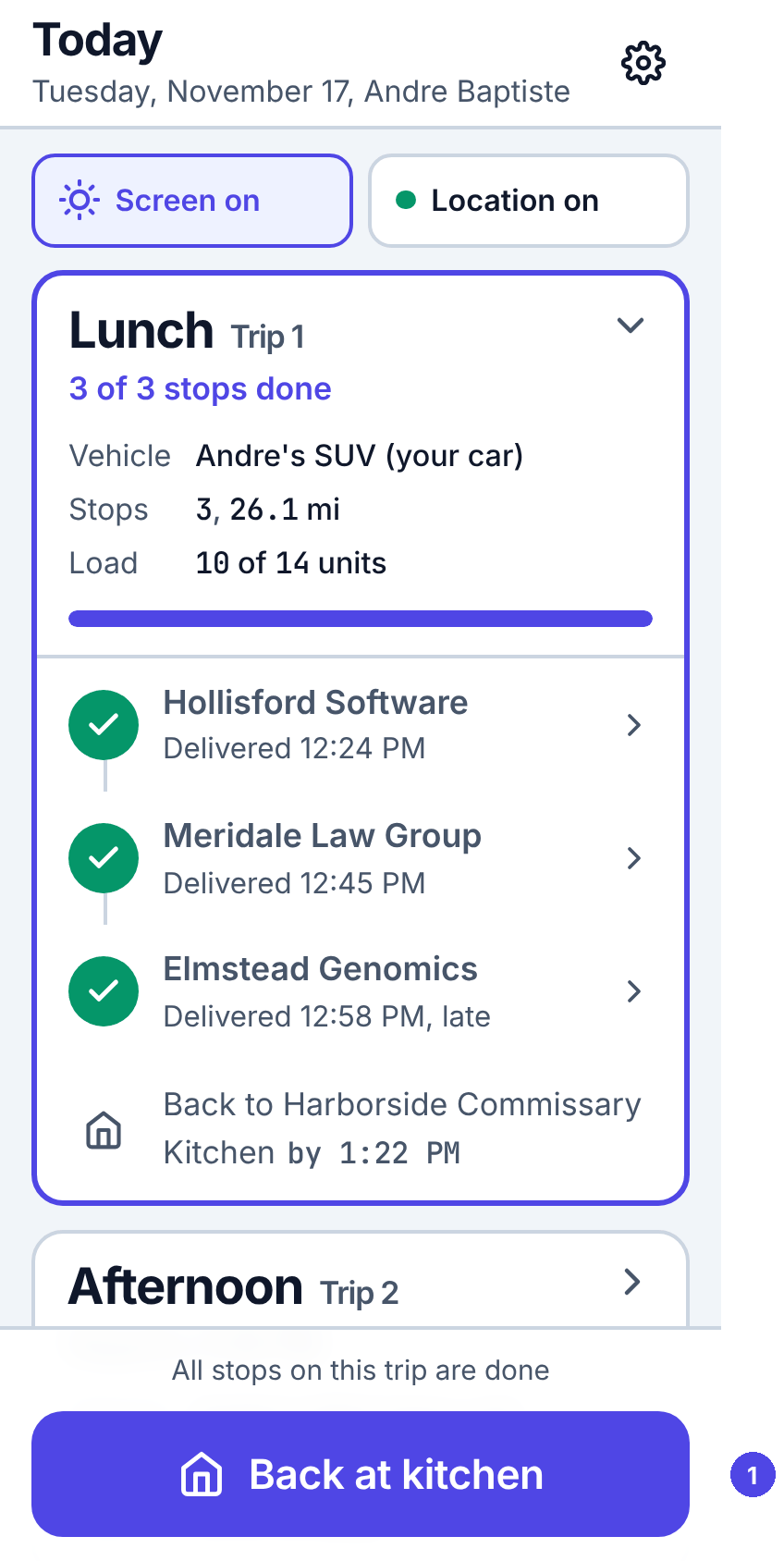
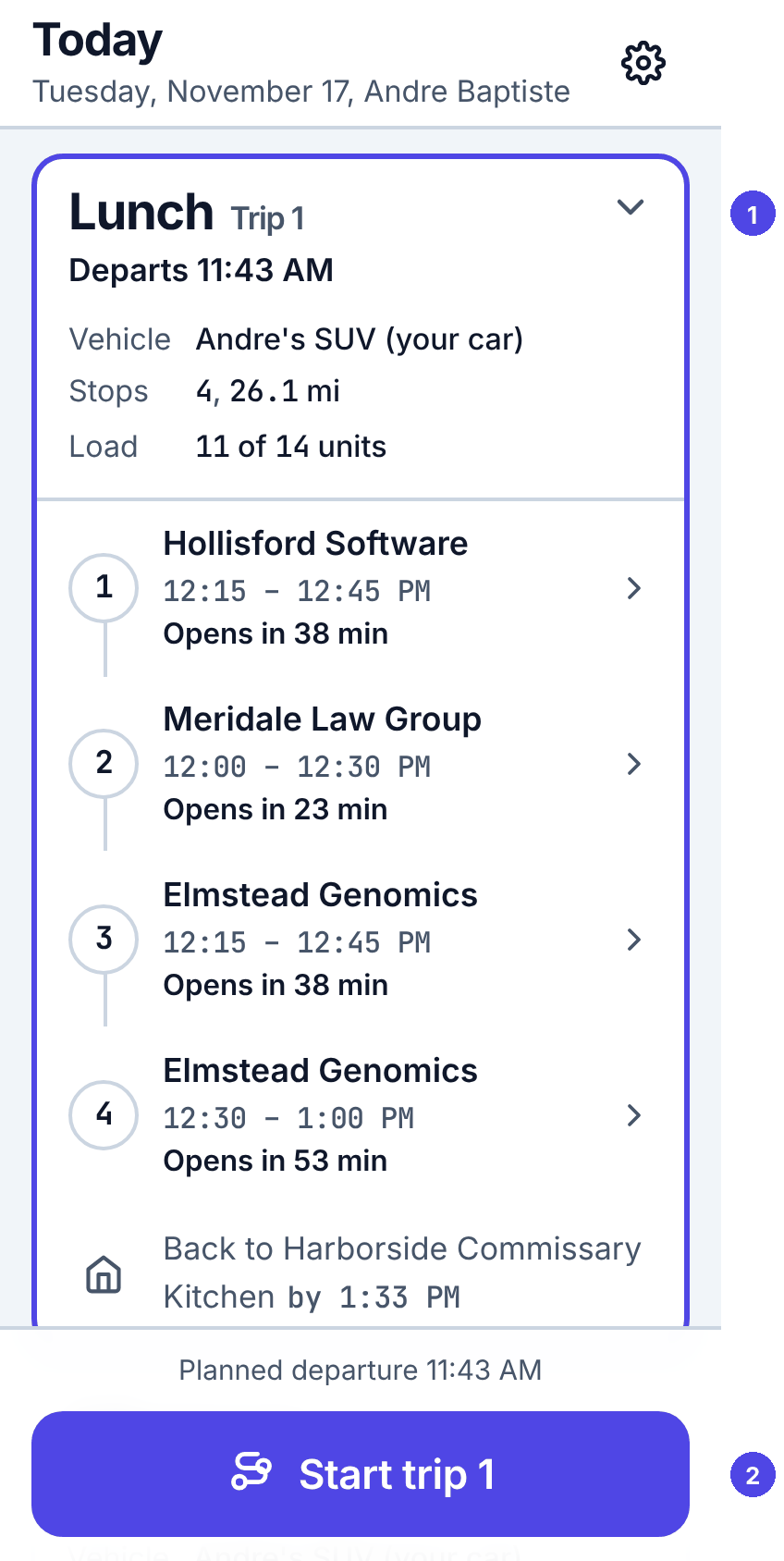
Today lists your trips in order, for example Lunch, Trip 1. Each card shows when it departs, the vehicle, the stops and the load. The current trip is open, with its stops in order.
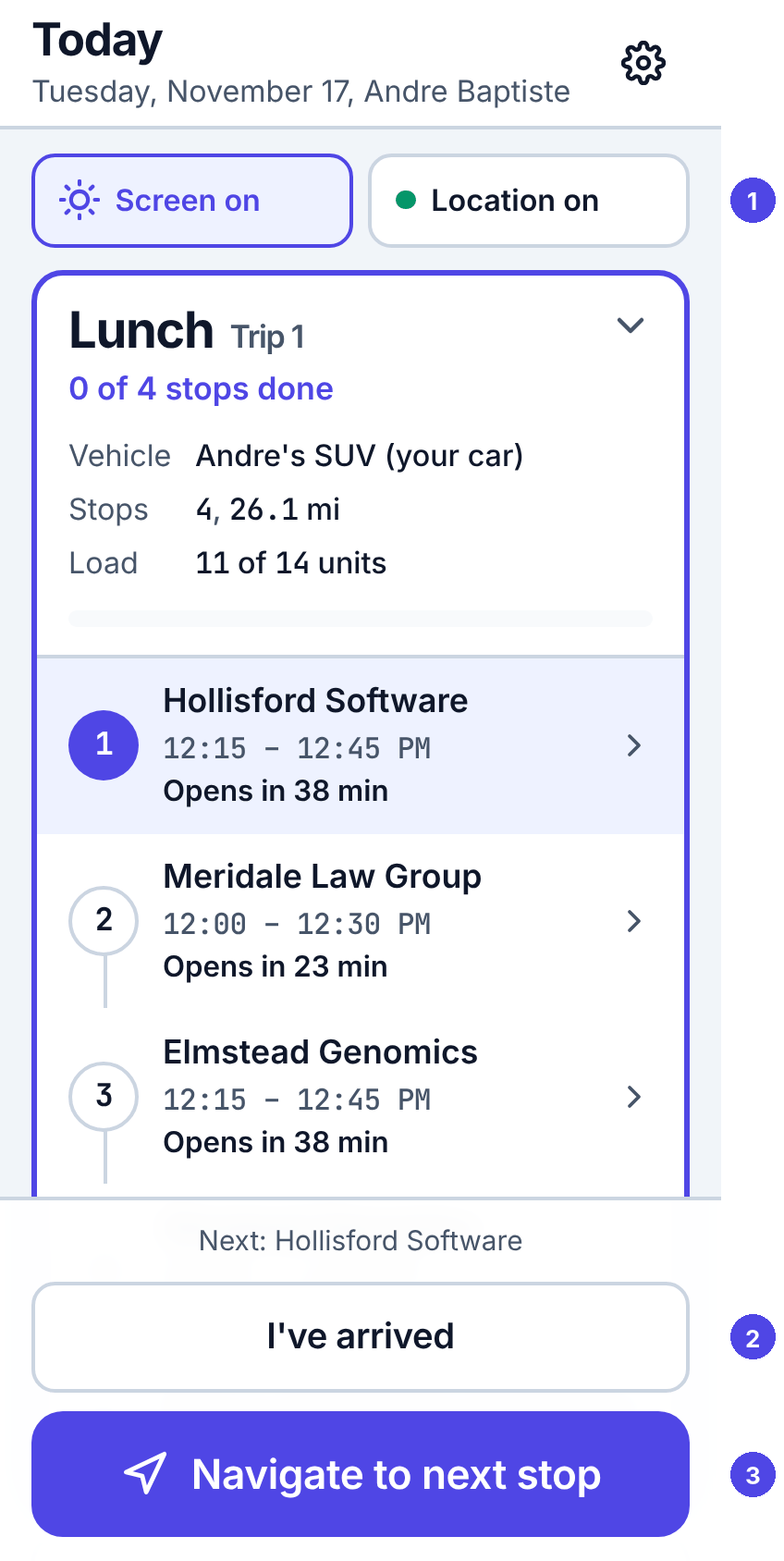
- No trips yet means dispatch has not sent your route. Pull the screen down to check again, or call dispatch.
- Pull down, or tap the round arrow at the bottom, to refresh.
- Each stop shows its window and how long until it opens, how long is left, or how late it is.
To start a trip
When the vehicle is loaded, tap Start trip. The button also shows the planned departure. Dispatch sees you are on the road.
While a trip runs, two buttons at the top show Screen on (the screen does not lock while the app is open; tap to let it sleep) and Location on (green), Finding GPS or Location off (red: tap it for help).
To go to the next stop
Tap Navigate to next stop. Your maps app opens with the address: Google Maps, Apple Maps or Waze, whichever you picked in Settings. When you come back to Routisserie, the main button is I've arrived.
A stop
Tap a stop in the list to open it.
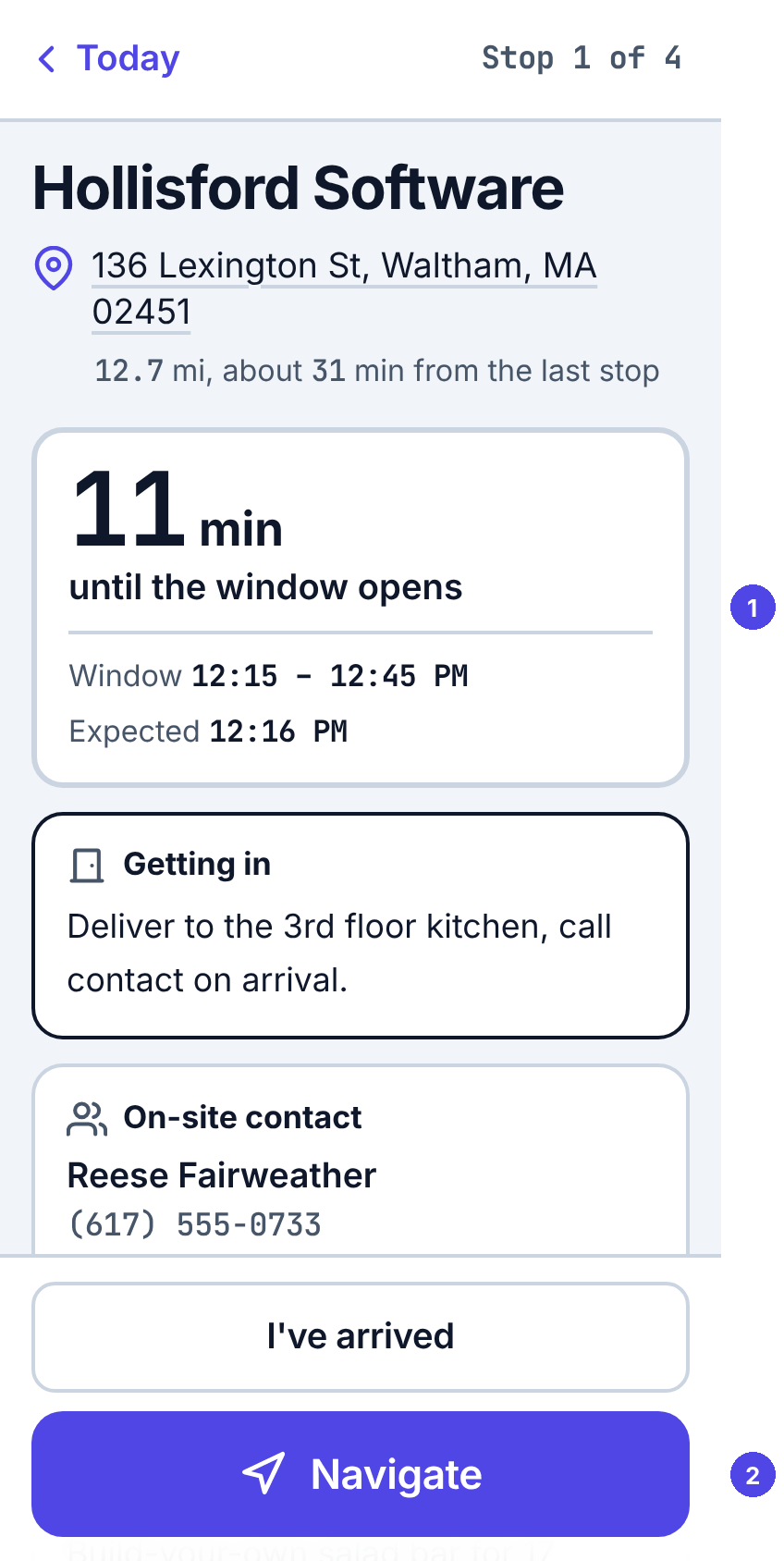
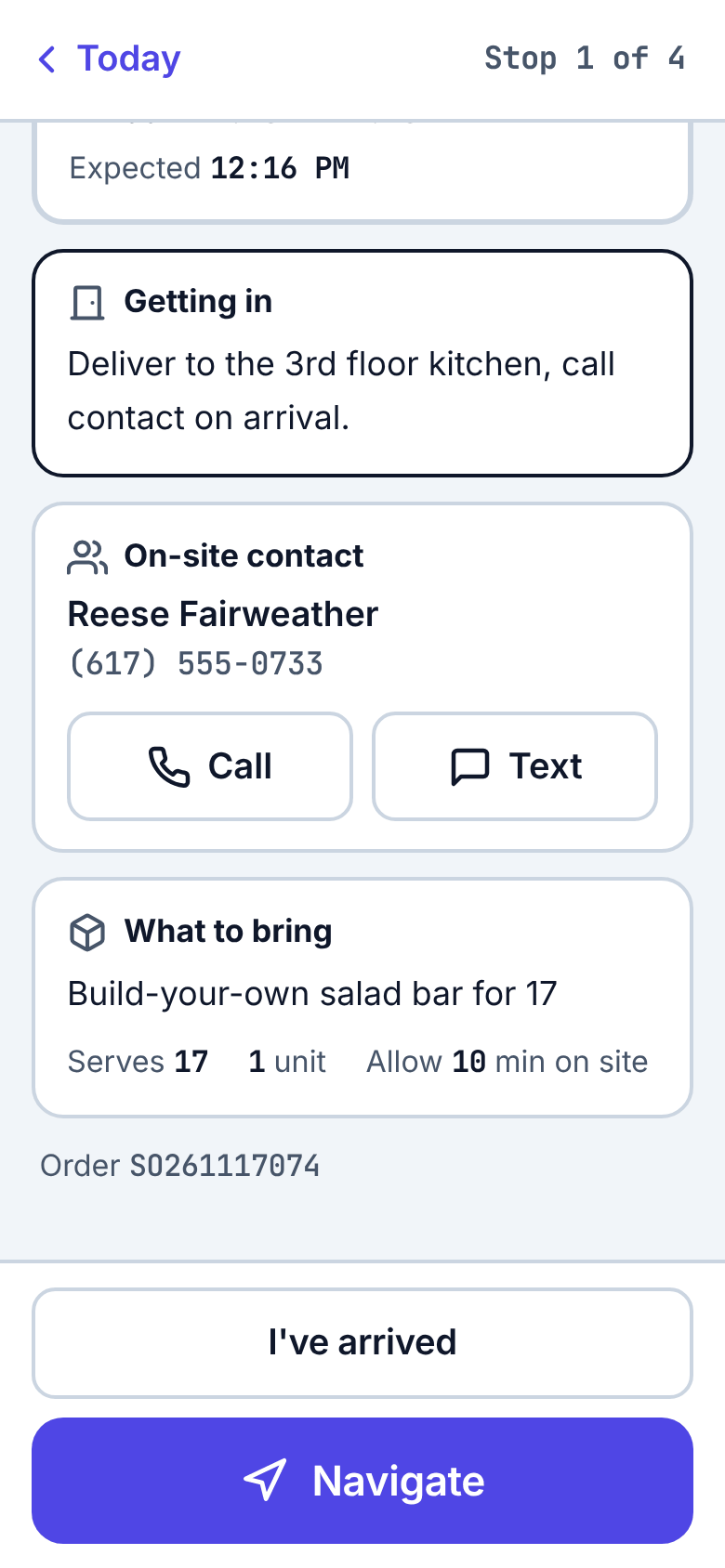
- The window panel says how long until the window opens, how long is left, or how late you are, and when you are expected.
- Getting in: dock, entrance, parking, badge. Read it before you get there.
- On-site contact: tap Call or Text.
- What to bring and how many guests; Order notes and Note from dispatch when there are any.
- If the map pin for the address may be off, the stop says so: check the street number.
To arrive
At the door, tap I've arrived. If your phone sees you are close to the stop, I've arrived becomes the main button by itself. Dispatch sees you are on site.
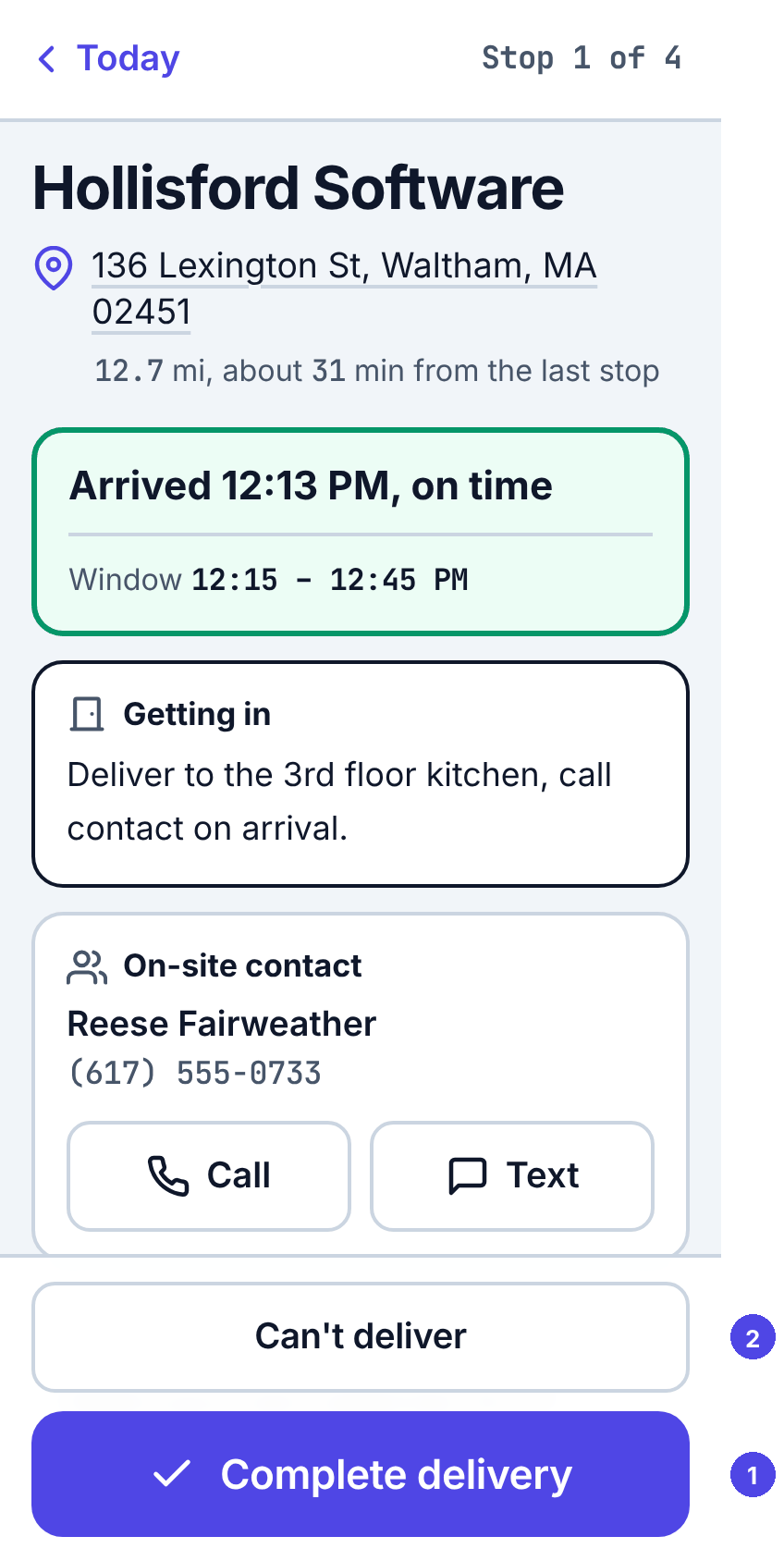
Then complete the delivery or report that you can't.
Back at the kitchen
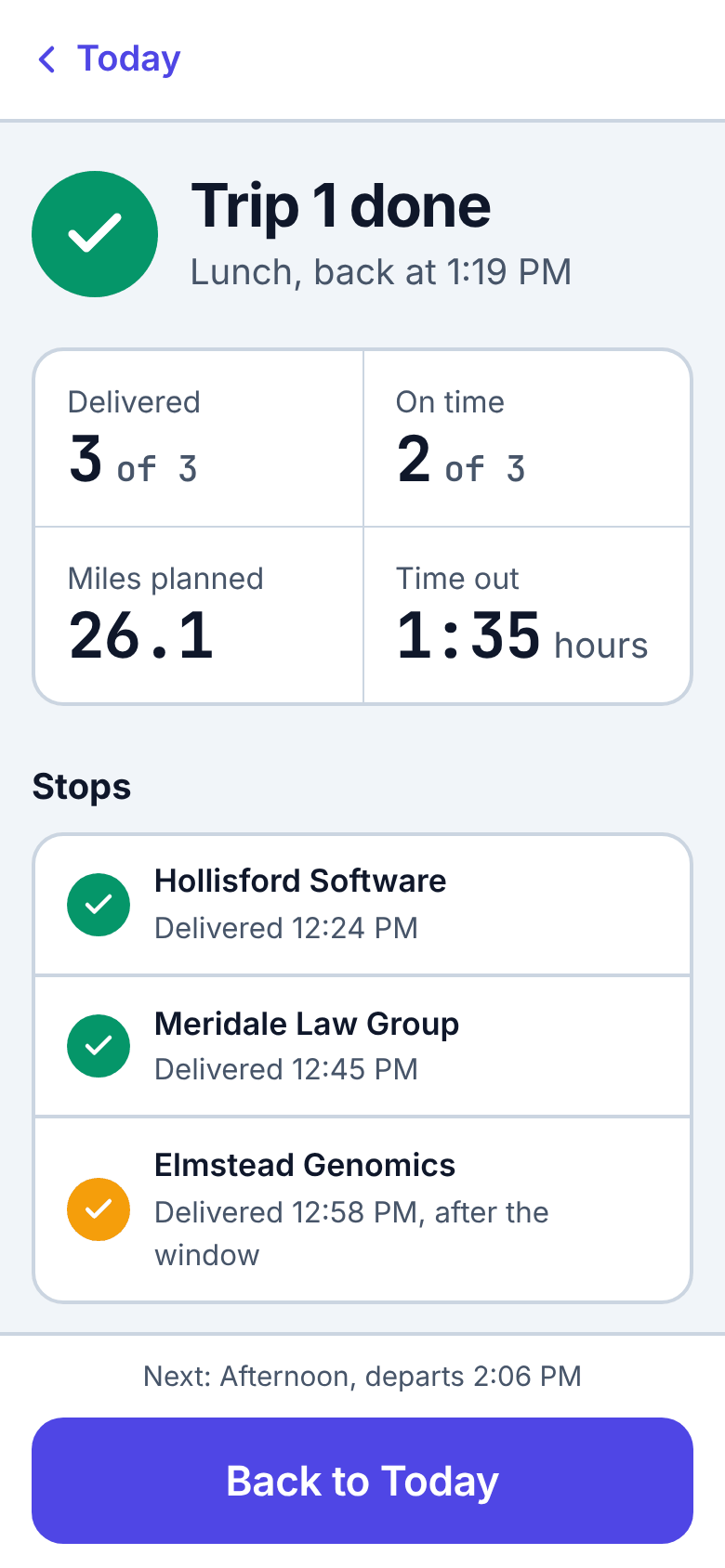
When every stop of the trip is done, tap Back at kitchen. A trip summary shows what you delivered and how long you were out. Your next trip, if you have one, is on Today with its own Start trip button.