Installing and signing in
The driver app runs in your phone's web browser. Add it to your home screen once and it opens like any other app, starts faster and keeps working without signal.
To install the app
- Open app.routisserie.com/driver on your phone.
- Sign in (below).
- Tap the gear at the top right (Settings), then Add to home screen, and follow the steps for your phone:
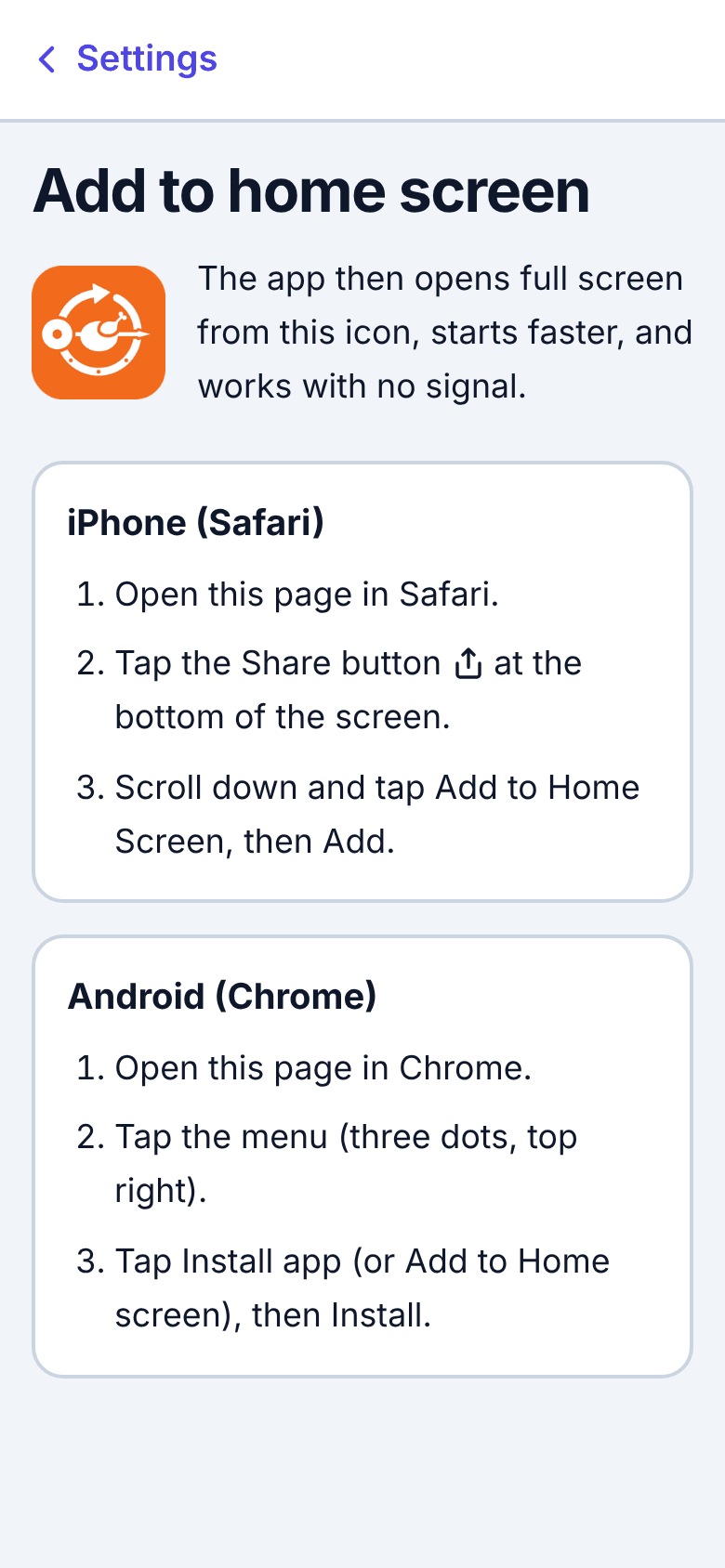
- iPhone (Safari): tap the Share button at the bottom of the screen, scroll down, tap Add to Home Screen, then Add.
- Android (Chrome): tap Install app if it is offered, or open the menu (three dots, top right), tap Install app (or Add to Home screen), then Install.
Use the icon from then on. On iPhone this matters: Safari may clear saved data for websites not added to the home screen after about a week without a visit.
To sign in
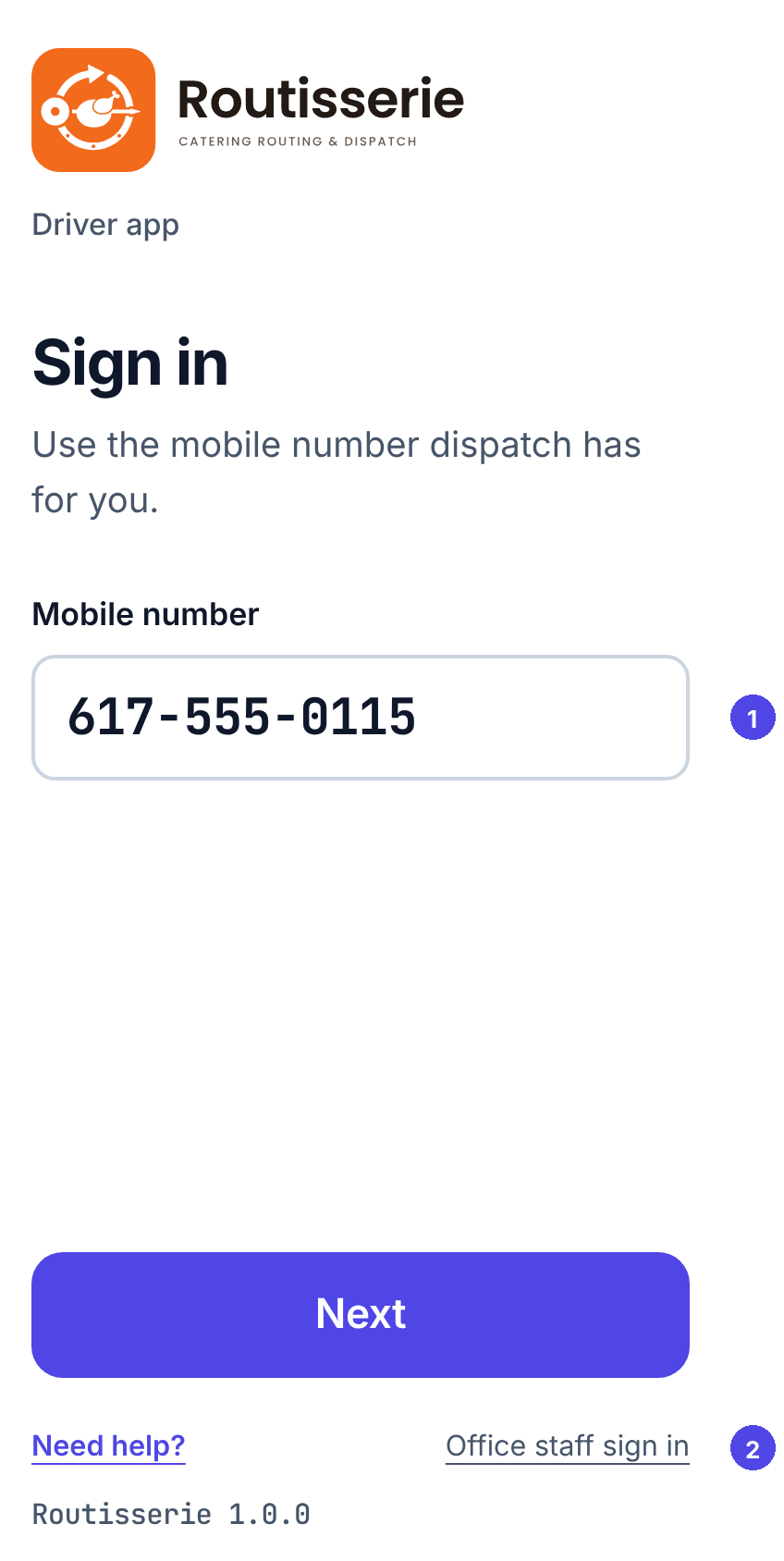
- Type the mobile number dispatch has for you and tap Next.
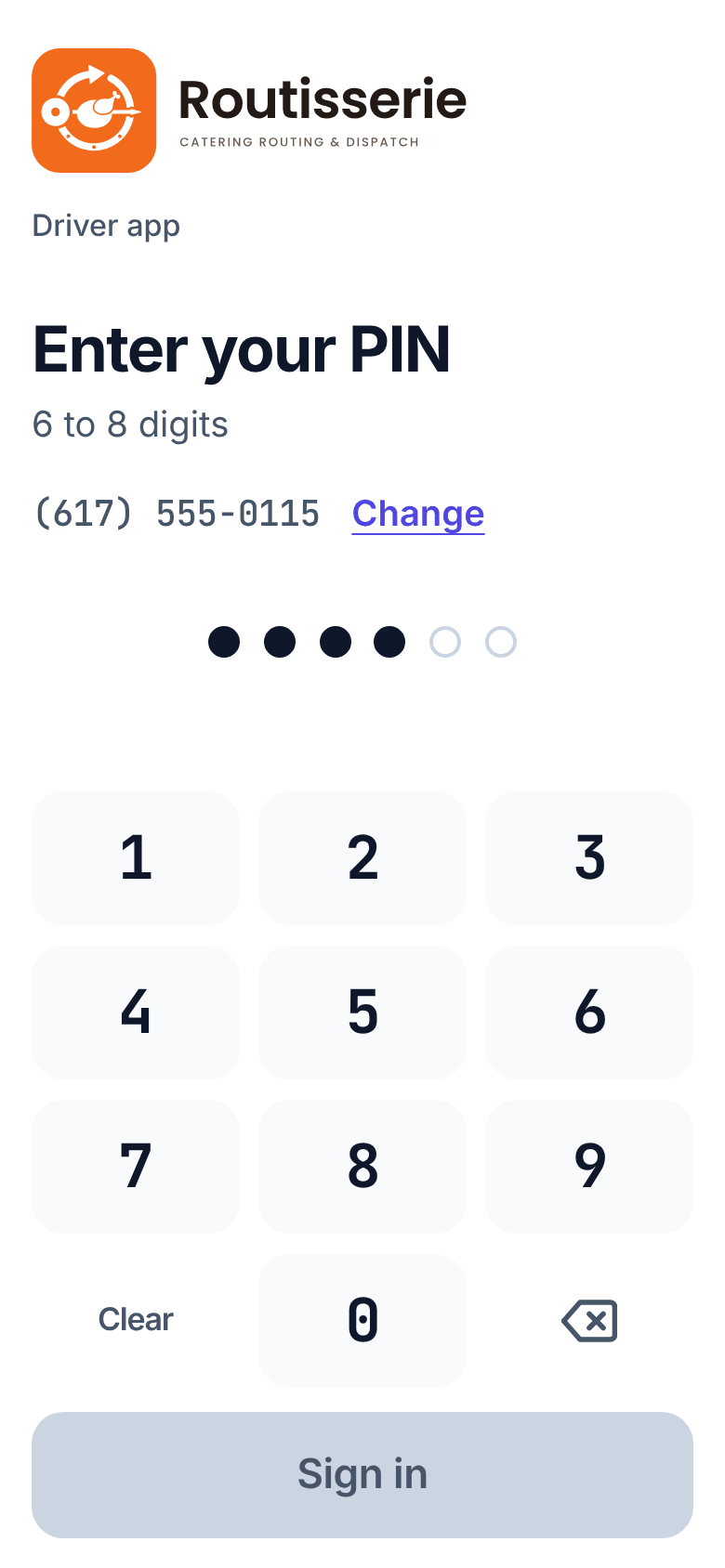
- Type your PIN (6 to 8 digits) on the keypad and tap Sign in. Clear empties it, the arrow key removes the last digit, Change goes back to the number.
The app remembers your number. You stay signed in for the day.
If it says That phone number and PIN don't match, check both. If you forgot your PIN, ask dispatch to set a new one. After too many wrong tries the app makes you wait a few minutes.
If it says Can't reach the server, you have no signal. Move to where you have some and try again.
If you are signed out during the day (for example the PIN was changed), sign in again. Anything you did in the meantime is kept on the phone and sent after you sign in; the screen tells you how many updates are waiting.
Allow location
When you start your first trip, the phone asks to share your location with the app. Choose Allow (or Allow While Using App). The app shares your location only during trips, and stops when you tap Back at kitchen.
If you said no by mistake, the app shows how to turn it back on: on iPhone, Settings → Privacy & Security → Location Services → Safari Websites (or the app) → While Using; on Android, the lock icon next to the address bar (or long-press the app icon → App info) → Permissions → Location → Allow.
The app only shares location while it is open on screen. To be seen by dispatch while the phone is locked or you are in a maps app, set up always-on tracking.