Always-on tracking
The driver app can only share your location while it is open on the screen. Phones stop web apps from using location when the screen locks or you switch to Google Maps, Apple Maps or Waze. A free tracking app fixes that.
Why bother
Without it, dispatch sees where you were when you last had Routisserie open. Your arrival times on their screen are then guesses, and you may get a No signal call while you are simply driving with the maps app in front. With a tracking app, dispatch sees you all the time during your trips, so they call you less.
You set it up once. It sends your location only to your company's Routisserie server, and you can turn it off in that app at any time.
To set it up
In the driver app, open Settings → Always-on tracking, pick OwnTracks or Traccar Client, and follow the steps on the screen.
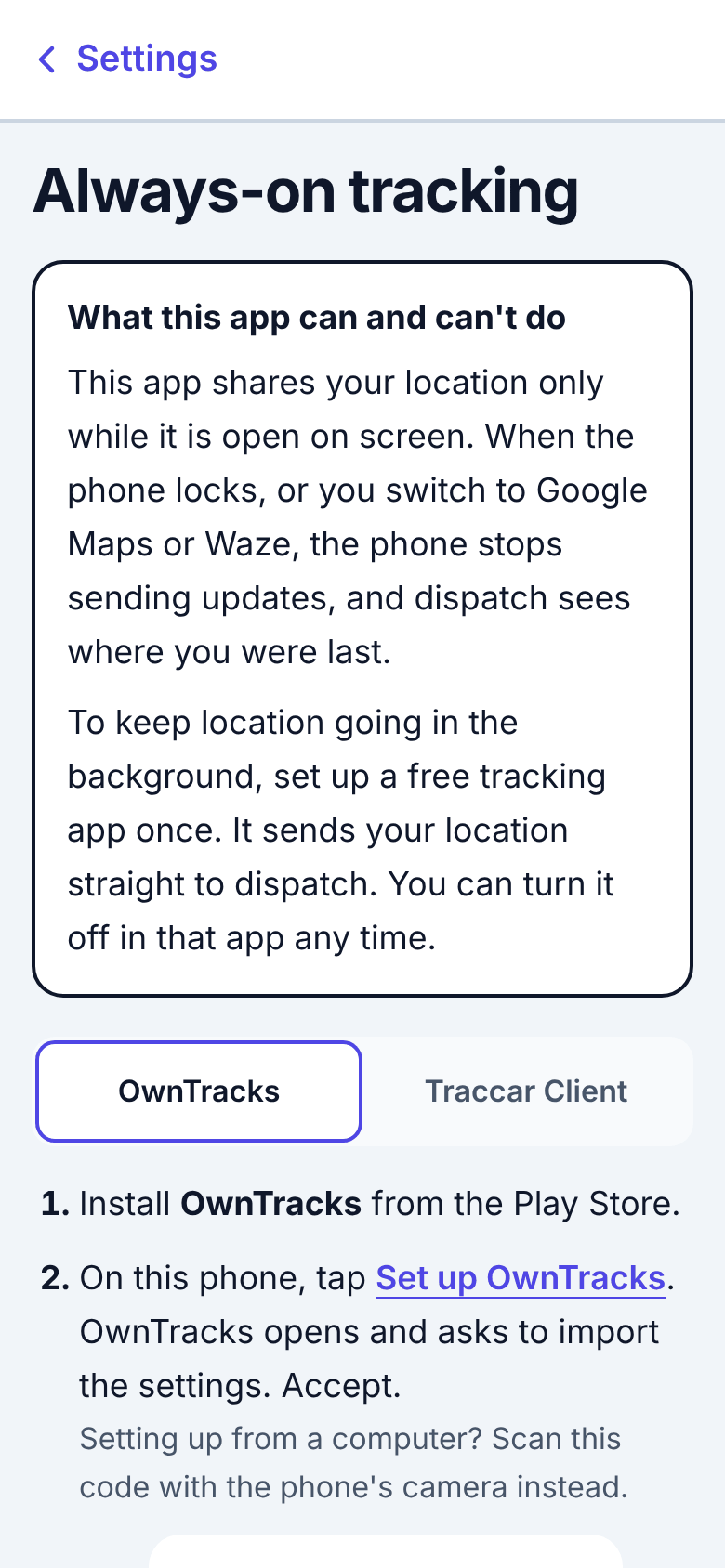
OwnTracks
- Install OwnTracks from the App Store or Play Store.
- On the same phone, tap Set up OwnTracks on the Always-on tracking page. OwnTracks opens and asks to import the settings: accept. (Setting up from a computer? Scan the QR code with the phone's camera instead.)
- Allow location Always when OwnTracks asks.
- While driving, use OwnTracks' Move mode (the arrows icon on its map).
If the link does not work, open Set it up by hand instead on the same page: it gives the address to paste into OwnTracks (Settings → Connection, Mode HTTP) and a settings file to download.
Traccar Client
- Install Traccar Client from the App Store or Play Store.
- Paste the Server URL shown on the page into Traccar Client's Server URL (or scan the QR code).
- Set Location accuracy to High, Frequency to 30 seconds, Distance to 50 meters. Leave Device identifier as it is.
- Turn on Service status and allow location Always.
Keep the link private. Anyone with it can send a location as you. If it was shared by mistake, ask dispatch for a new one (the old one stops working).
For dispatch
Each driver's private tracking link is in their details: Drivers → Drivers, click the driver, Background tracking (OwnTracks).
- Copy copies the link; Copy instructions copies short setup steps to paste into a text message.
- New link issues a new link and stops the old one. The driver must set up the tracking app again.
If a driver's Always-on tracking page says Your tracking link isn't available, send them the link from here.