
Changing trips by hand
Optimize gets you most of the way. The rest is your knowledge of customers, drivers and the city. Every change here can be undone, and every change re-times the trips involved straight away.
To move a stop to another trip
Drag the stop's row from one trip card to another.
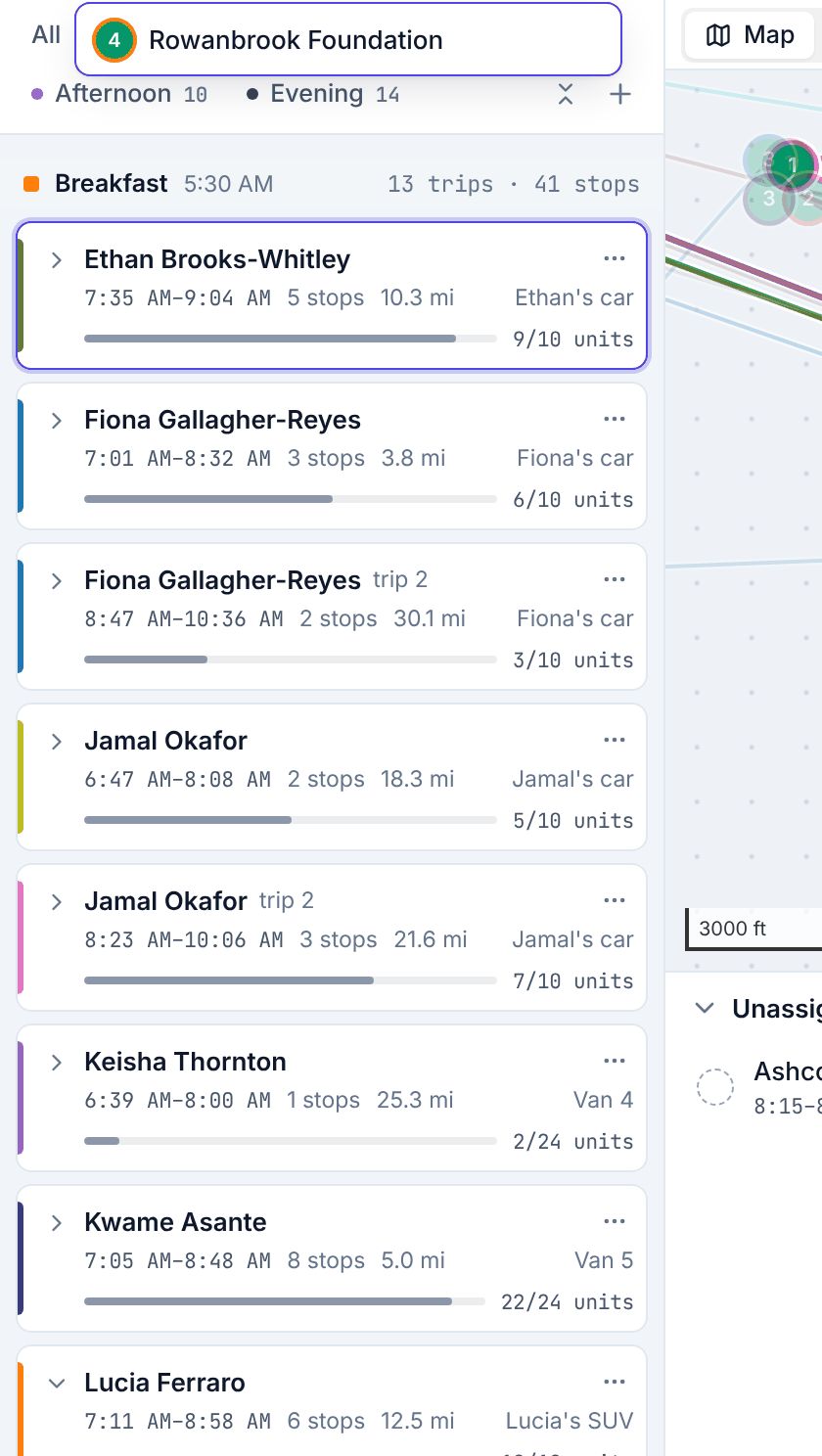
- Drop it on a stop row of an open trip: it goes just before that stop.
- Drop it on a closed trip card: Routisserie puts it where it costs least.
- Drag within a trip to change the order.
- Drop it on the Unassigned list to take it off its trip.
- On the timeline, drag a block onto another driver's row: it goes to that driver's trip in the same wave. If the driver has no trip in that wave, add one first.
You can also drag rows from the Unassigned list onto a trip. A message confirms each move and offers Undo.
To move several stops at once
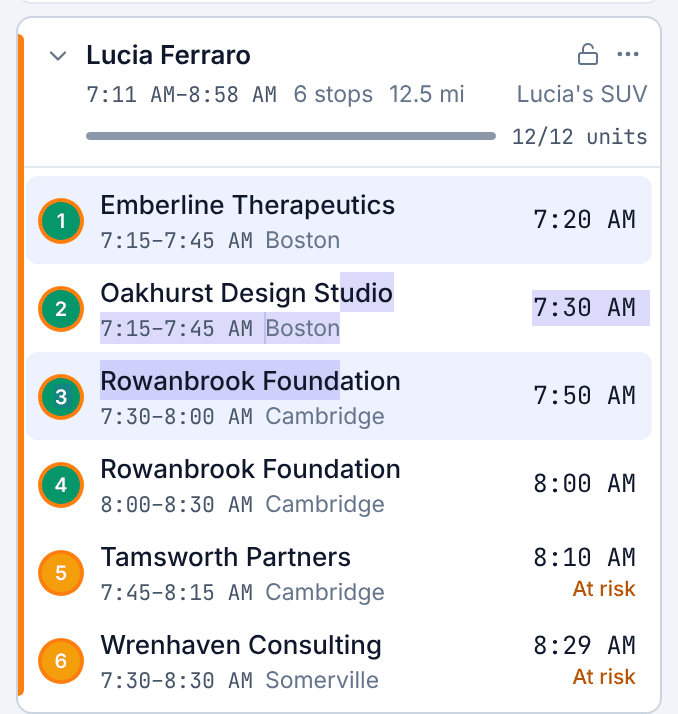
- Select stops: hold Shift and click rows (in trips or the Unassigned list), or hold Shift and drag a box around stops on the map (or turn on the lasso button above the map).
- A bar at the bottom of the map says how many are selected.
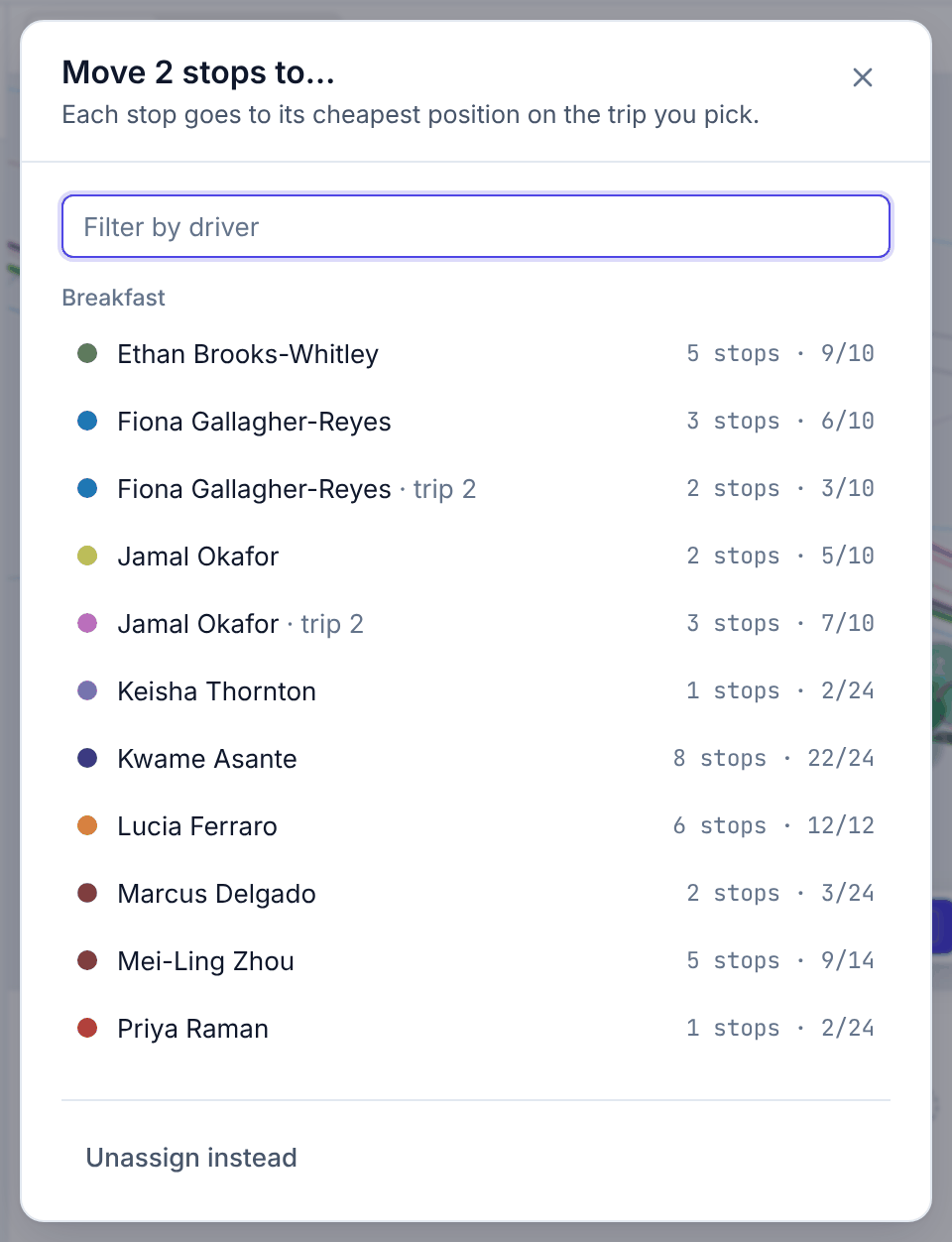
- Click Move to… (or press M), pick a trip, and each stop goes to its cheapest place on that trip. Unassign takes them all off their trips. Esc clears the selection.

Stops on a trip that has left
Once a trip is on the road, its deliveries are in the vehicle. Moving one to another trip is a hand-off between two vans, so Routisserie asks first: Hand off loaded deliveries? Click Move anyway only if both drivers know. The same question (Move a stop the driver has started?) comes up for a stop the driver is heading to or standing at. Pickups have nothing on board and move freely.
To lock what is right
- Lock a trip: point at the card and click the open lock. Optimize will not change that trip. Click again to unlock.
- Lock a stop: in its stop panel, turn on Lock (Keep on this trip when optimizing). The stop stays with that driver and wave; Optimize may still change its position.
Locks are for things Routisserie cannot know: a customer who always gets the same driver, a driver who must be back early.
To add a trip
Click + at the top of the trip list (or Add one under an empty wave). Pick the wave, the driver and the vehicle (or the driver's usual one), then Add trip. The new trip is empty: drag stops onto it, or use Fit into trips.
The driver list says who is off and who already has a trip in that wave.
To give a trip to another driver or vehicle
Open the trip's ⋯ menu and choose Change driver or vehicle…. The new driver's skills and vehicle's capacity apply at once; any problem shows as an issue on the card.
To change a stop's window, wave or time on site
Open the stop panel, change the values, and click Save changes (or Discard). The trip is re-timed. Changing the window here changes only this stop, not the order in NetSuite.
Undo
Click the round arrow left of Publish, press Z, or click Undo in the message after a change. Undo goes back one change at a time: moves, optimizing, clearing, adding or deleting trips, changing a trip's driver or vehicle, applied suggestions.
Undo does not:
- take back a publication (use Unpublish…, see Publishing);
- rewind work a driver has done. If a change would, Routisserie says Undo is blocked: change the plan by hand instead.
When someone else changed the plan
Two people can work on the same day. If the trips you were changing were changed by someone else a moment earlier, your change is not applied, the board shows the latest plan, and a message offers Retry.