
Orders
The Orders screen lists every order of the day. Use it to import orders, type in a phone order, change or cancel one, fix an address, and copy a customer's tracking link.
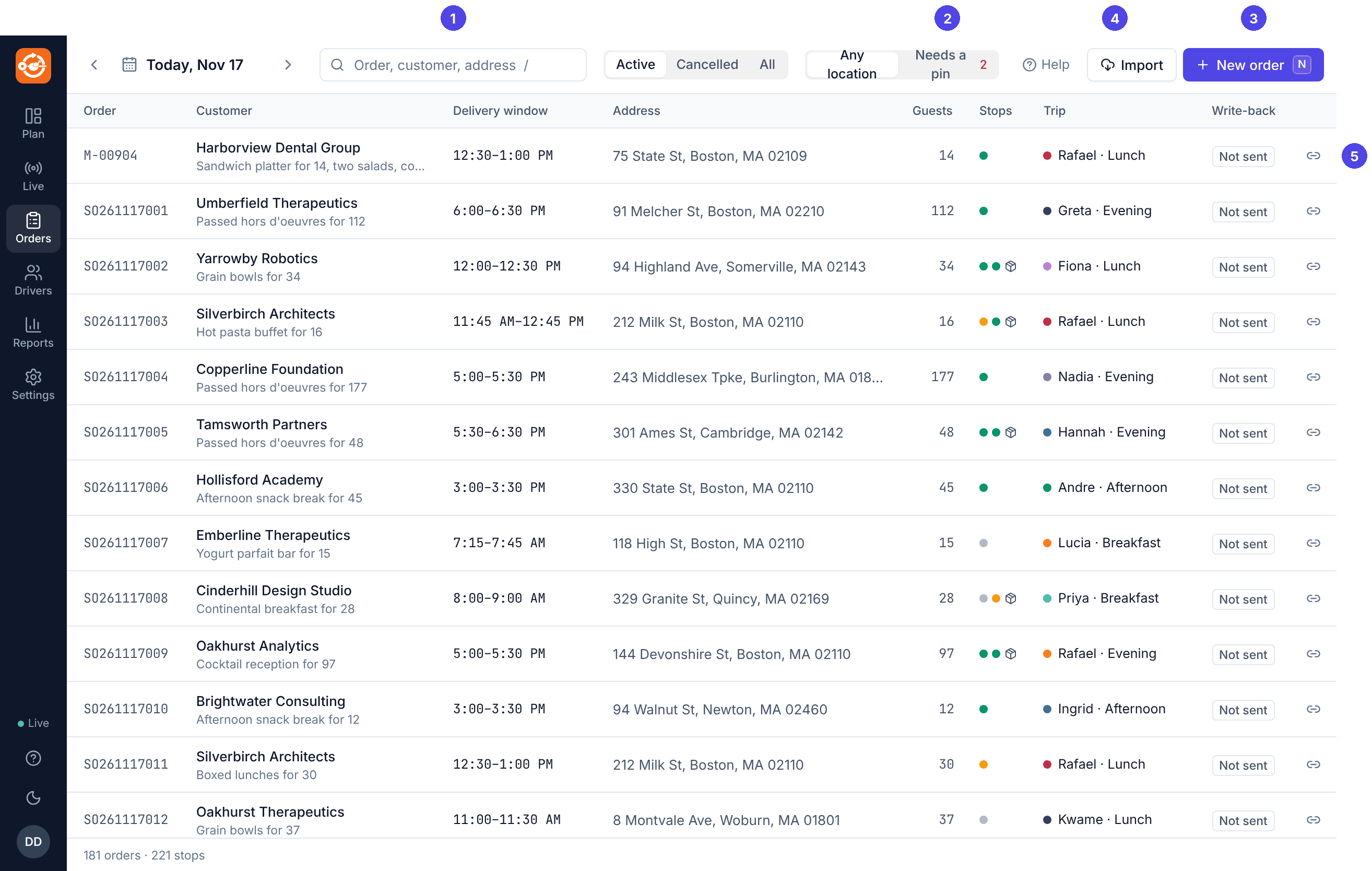
Each row shows the order number, customer and items, the delivery window, the address, guests, a coloured dot per stop (two dots when there is a pickup), the trip it is on, and whether the assignment was written back to NetSuite:
| Write-back | Means |
|---|---|
| Not sent | Not published yet, or the order did not come from NetSuite. |
| Pending | Waiting to be sent (it is sent within moments). |
| Sent | NetSuite has the driver, sequence, arrival and mileage. |
| Failed | NetSuite refused or could not be reached. Point at the badge for the reason. Routisserie tries again by itself. |
- Search by order number, customer or address (press / to jump to the search box).
- Active, Cancelled, All filter by status.
- Needs a pin shows only orders whose address was not found or only roughly found. The red number counts them.
- Click a row to open the order.
Importing orders
Click Import (here or on the plan board).
From NetSuite
From NetSuite loads the sales orders for the day shown. Run it as often as you like: it adds new orders, updates changed ones, and cancels or moves orders that were cancelled or re-dated in NetSuite. It never duplicates an order. An admin can also make it run by itself every few minutes (Import from NetSuite every).
If NetSuite is not set up, the menu says Not set up. If NetSuite cannot be reached, a message says the import failed and no orders were changed: try again later, or import a CSV export instead.
From a spreadsheet (CSV)
- Choose Upload CSV….
- Drop the file on the window or click Choose file.
- Check the Service date: rows without a date are imported for this day.
- Click Import.
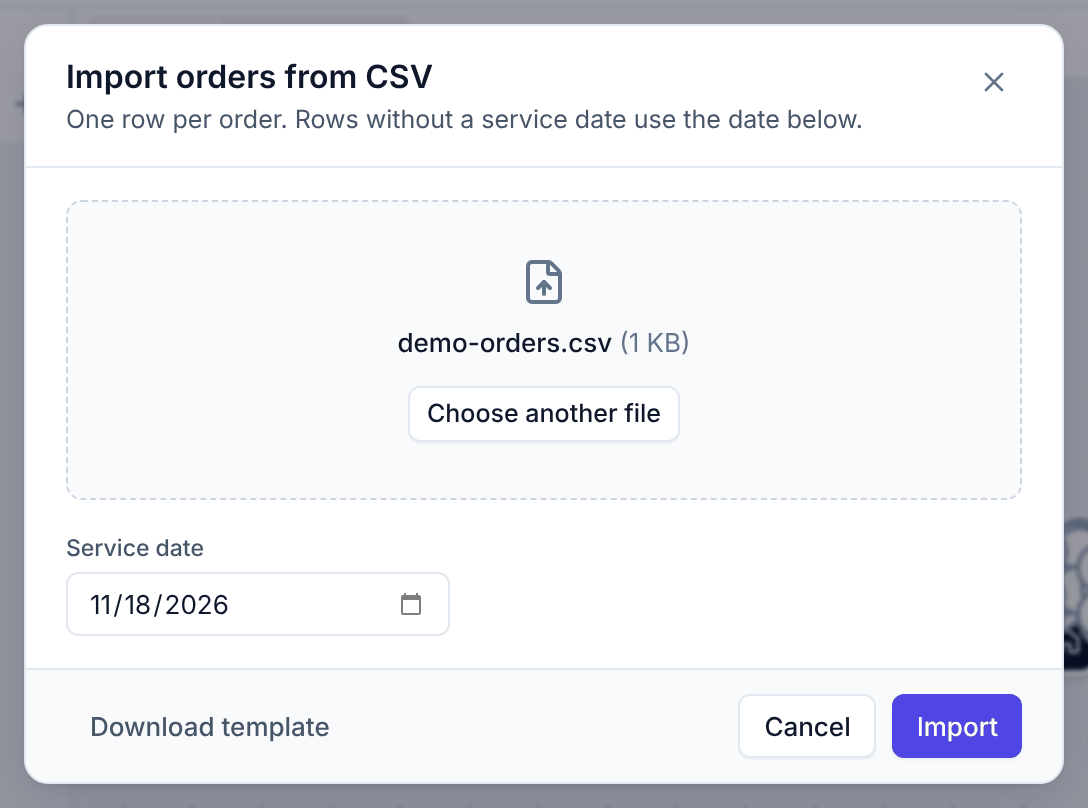
The importer accepts the usual spreadsheet exports (Excel CSV, semicolons, title rows above the header) and many column names (Customer or Client, Delivery Time or Window Start…). Click Download template for the full list. Importing the same file again updates the orders instead of adding them twice, matched by order number.
The import summary
Every import ends with a summary:
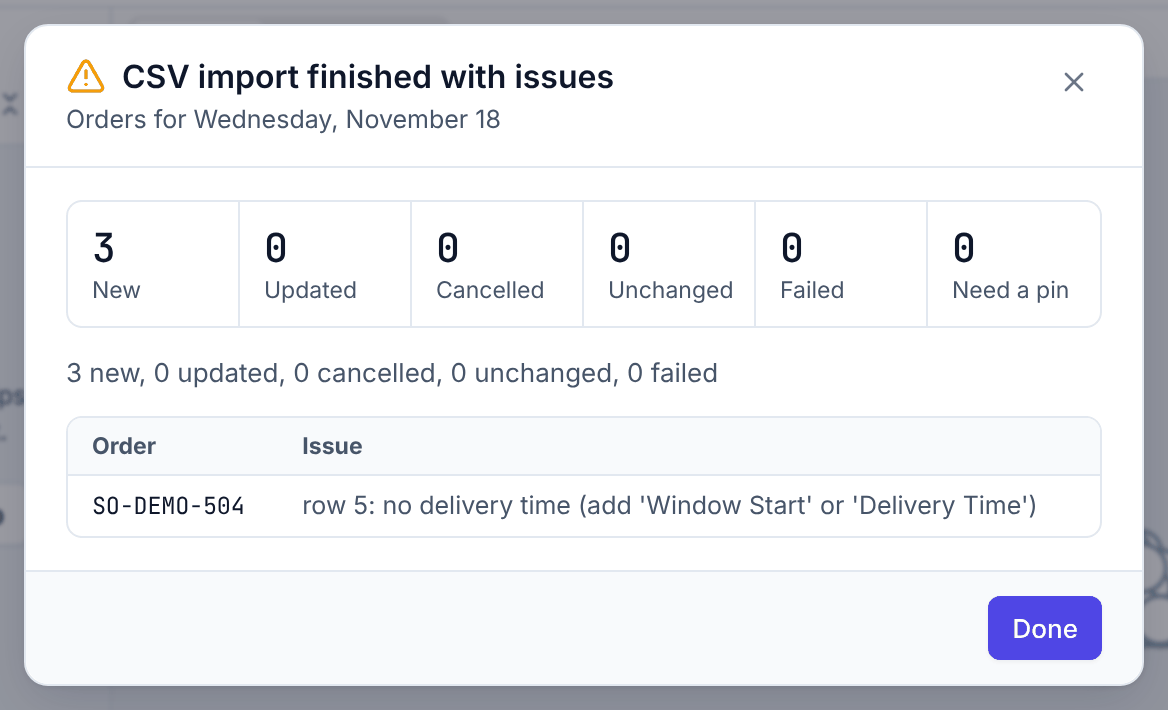
- New, Updated, Cancelled, Unchanged: what happened to the orders.
- Failed: rows that could not be used. Each is listed with the reason. Fix them in the file and import again, or type them in.
- Need a pin: imported, but the address was not found. They stay unassigned until you fix the pin.
To enter a phone order
- Click New order (or press N).
- Fill in the Customer, the Address (street, town, MA and ZIP), the Service date, and under Delivery the Window from and Window to. The rest is optional but helps: contact name and phone, guests, items, notes for the order, notes for the driver.
- Leave Order number blank to get one automatically (
M-00902). - For equipment to collect later the same day, turn on Equipment pickup later the same day and give the pickup's window.
- Click Create order.
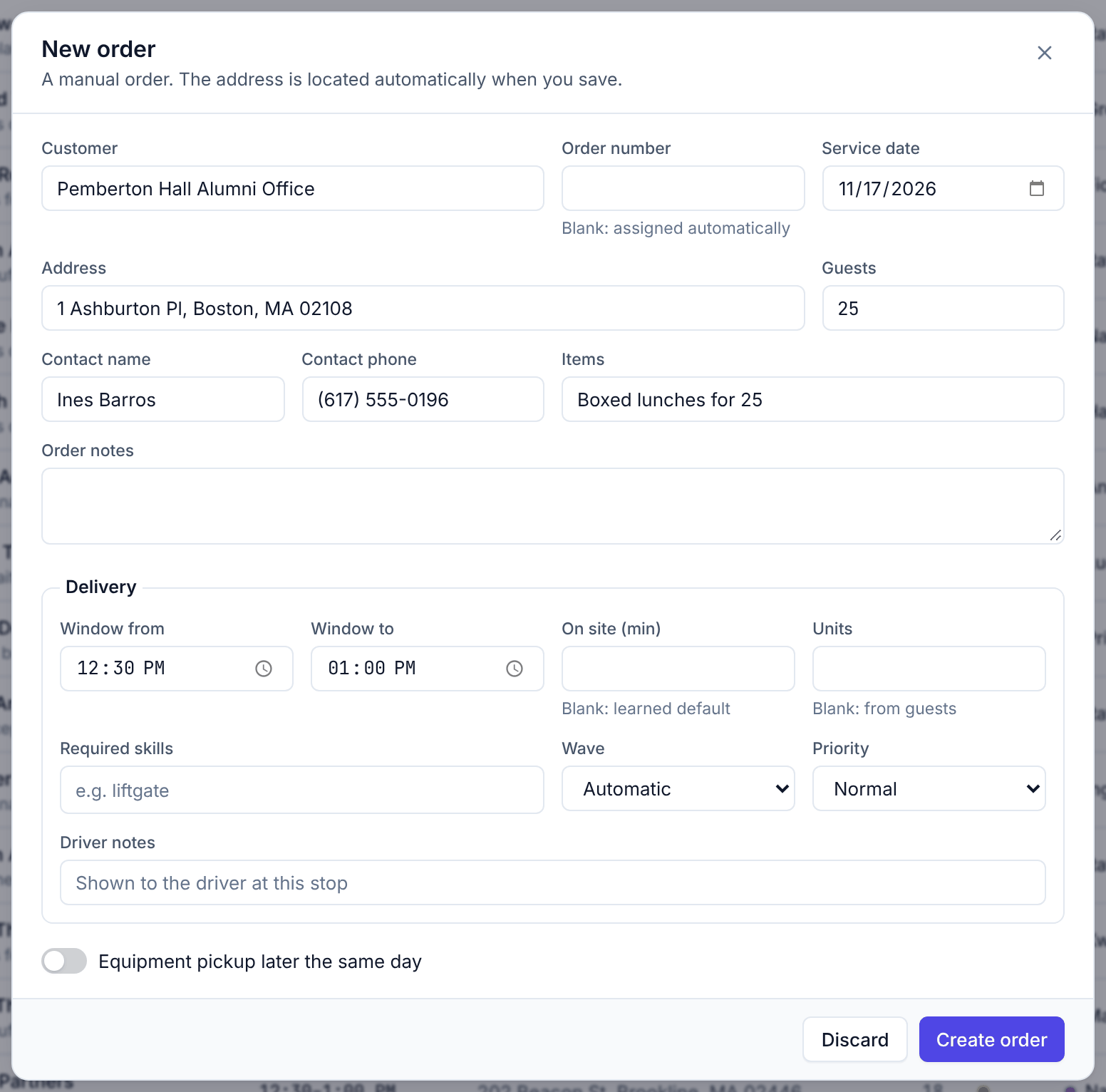
Routisserie looks the address up when you save. The message tells you if it was found; if not, the order is created anyway and you set its pin. The new stop waits in the plan board's Unassigned list: place it with Suggest, Fit into trips or by dragging. For an order taken while trips are on the road, see Rush orders.
To change an order
Click the order's row. Change what you need and click Save.
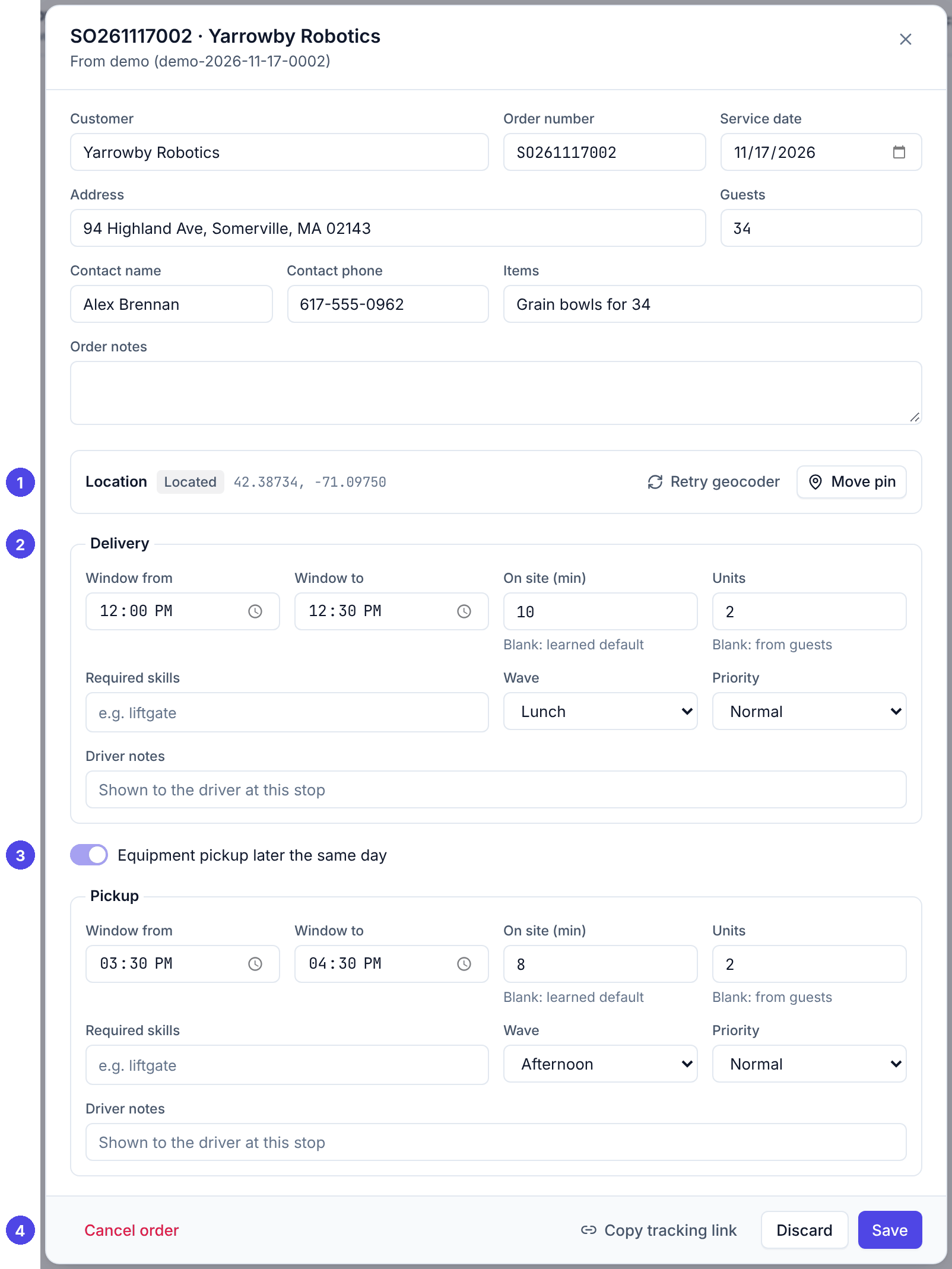
- Changing the address looks it up again and re-times the trip.
- Changing the service date takes its stops off their trips on the old day. This is refused once a driver has started the stop.
- Changes made here are not sent to NetSuite, except the assignment written back after publishing. If the order is also changed in NetSuite, the next import brings NetSuite's version.
To cancel an order
Open the order and click Cancel order (bottom left), then confirm. Its stops leave their trips and will not be delivered. Stops already delivered stay in the history. NetSuite is not changed by this: cancel the sales order there too.
Pickups
An equipment pickup is a second stop on the order with its own window, usually later the same day. It is planned like any stop, possibly on another driver's trip, and shows a small box icon. Add one to an existing order by turning on Equipment pickup later the same day and saving.
Fixing a pin
When an address is not found (Not found) or only roughly found (Approximate), the stop cannot be planned well.
- On the Orders screen, click Needs a pin and open the order.
- Under Location, try Retry geocoder after correcting the address, or click Set pin / Move pin.
- Drag the pin to the delivery entrance and click Save pin.
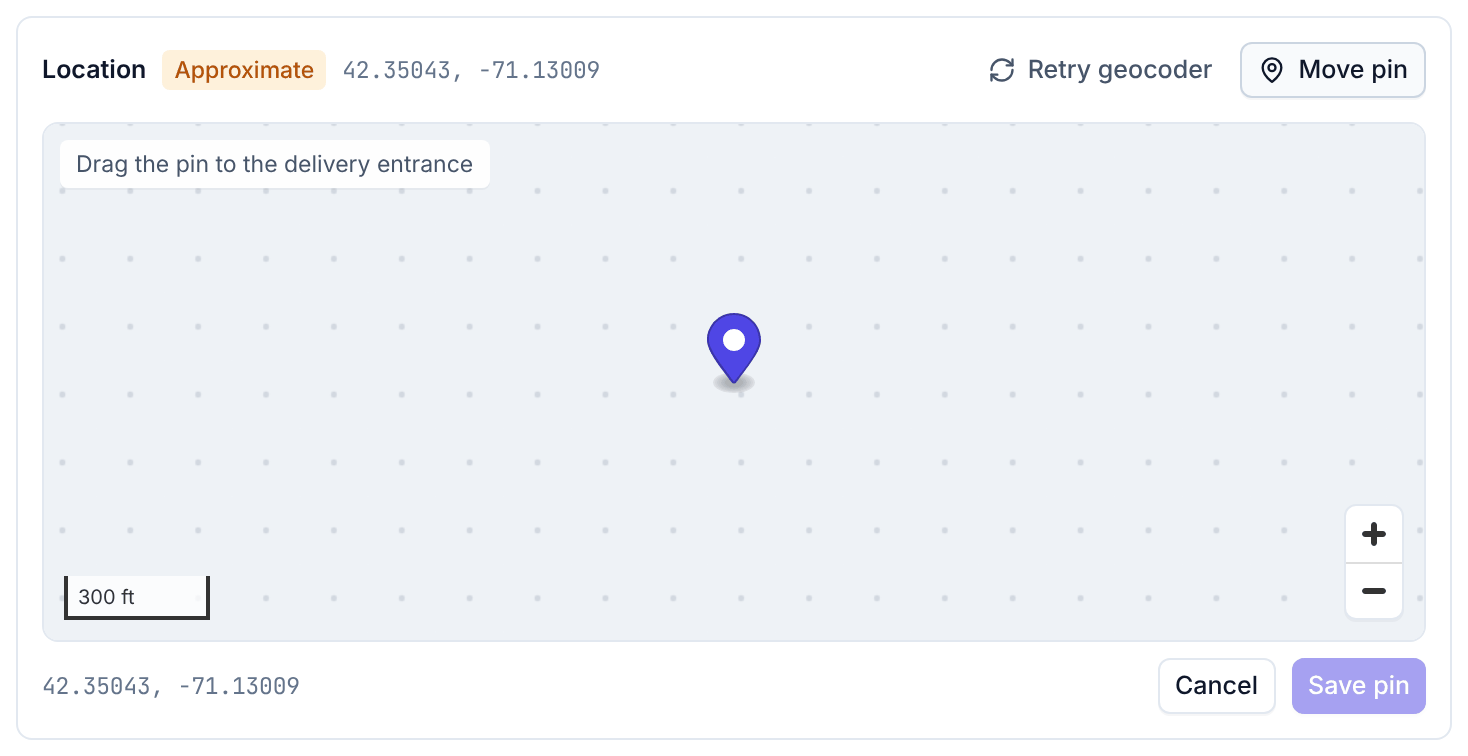
The pin is remembered for that building, so the next order to the same address is placed right. You can also fix a pin from the stop panel on the plan board (Fix pin); the trip is re-timed at once.
The customer tracking link
When your server has customer tracking turned on, every order has a private link to a page that shows the customer their delivery window, whether the order is scheduled, on its way, arriving or delivered, and the expected time. It shows your company name, never addresses, phone numbers or where the driver is.
To send it: click the link icon on the order's row, or Copy tracking link in the order or in the stop panel, and paste it into your email or text to the customer.
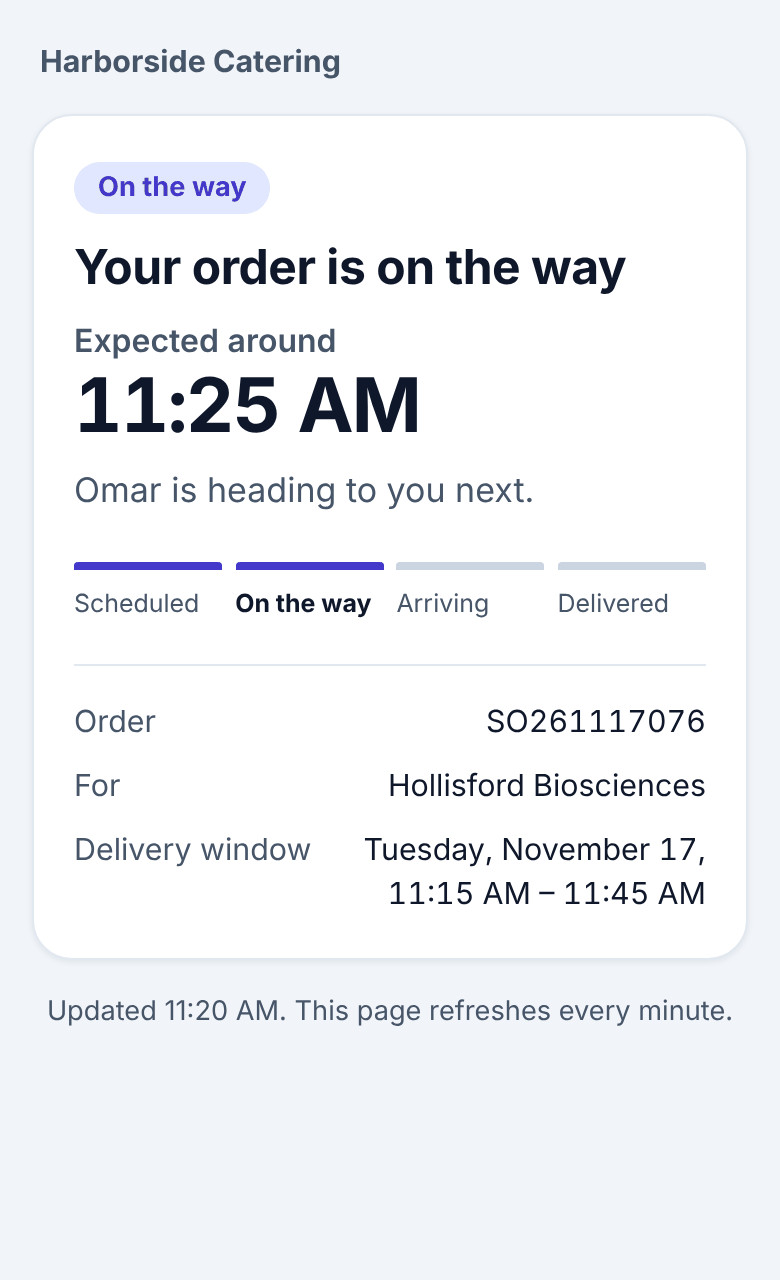
If you see no link icons, customer tracking is turned off on the server (see Integrations and customer tracking).