
Delivering
To complete a delivery
- On site, tap Complete delivery (for an equipment pickup: Complete pickup).
- Who received it? Type the name, or tap the contact's name if it is shown.
- Signature: hand the phone over and let them sign with a finger. Clear starts again. Optional if nobody can sign.
- Photo: tap to take one with the camera: the setup, or where you left the order. Retake or Remove photo if needed. Optional.
- Note (optional), for example left with front desk.
- Tap Complete delivery.
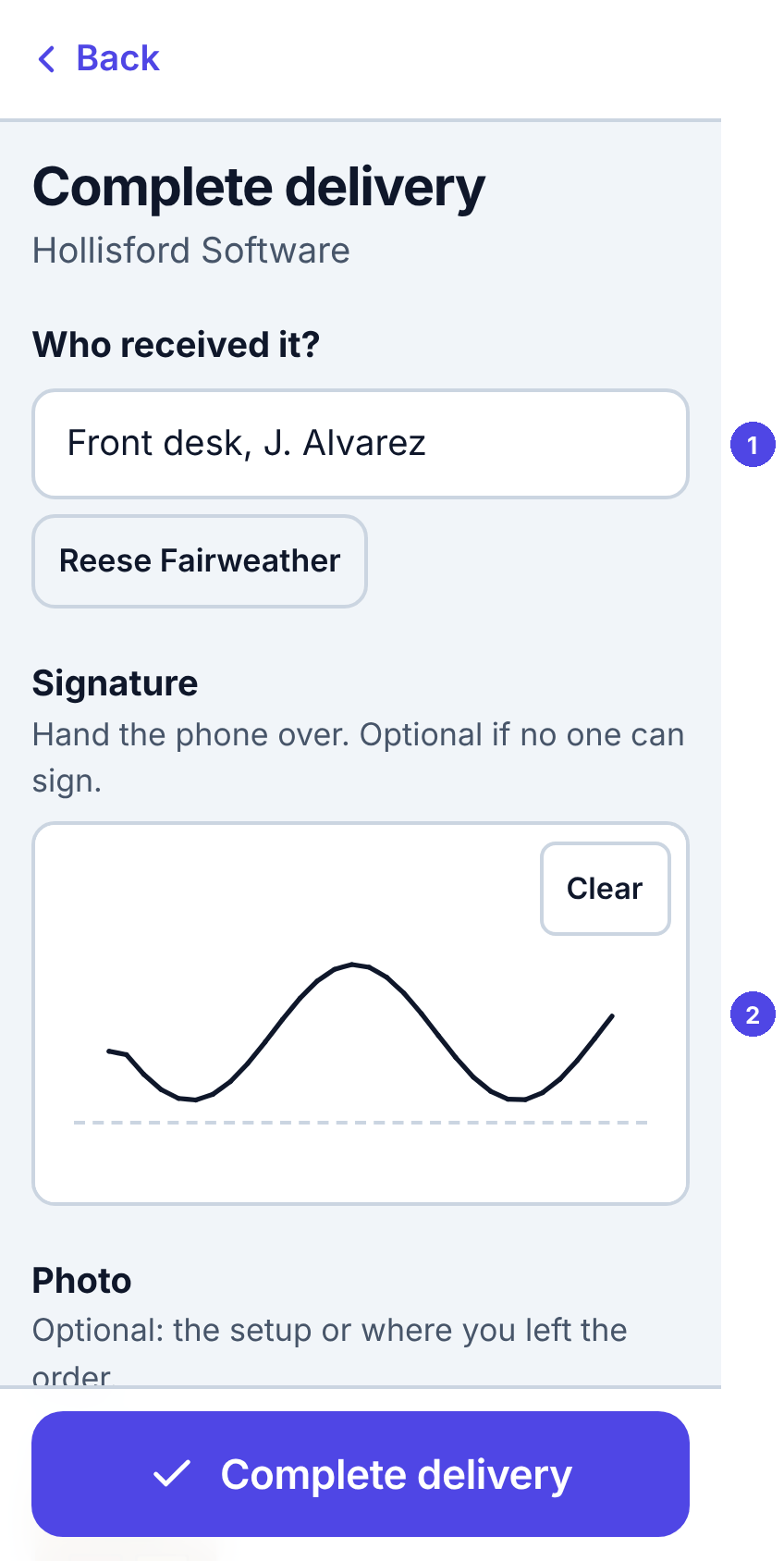
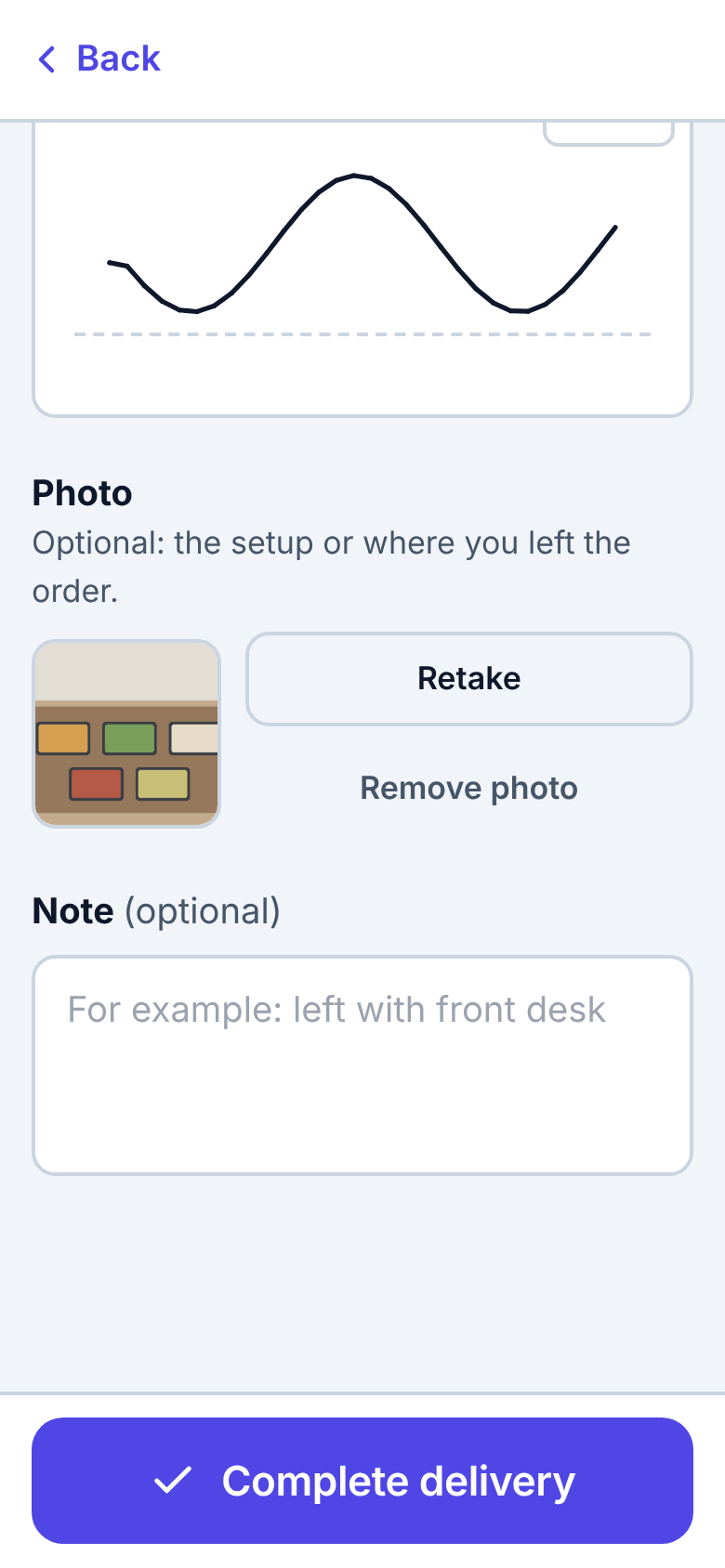
Add at least one of name, signature or photo whenever you can: it protects you if the customer later says nothing arrived. With no signal, the delivery is saved on the phone with its photo and signature and sent later (see No signal).
When you can't deliver
Call dispatch first if you can: they may know another entrance or another contact.
- On site, tap Can't deliver (or Can't pick up).
- Pick what happened: Customer not available, Wrong address, Can't get in (access problem), Problem with the order or Other.
- Add what happened in a few words. For Other this is required.
- Tap Report not delivered.
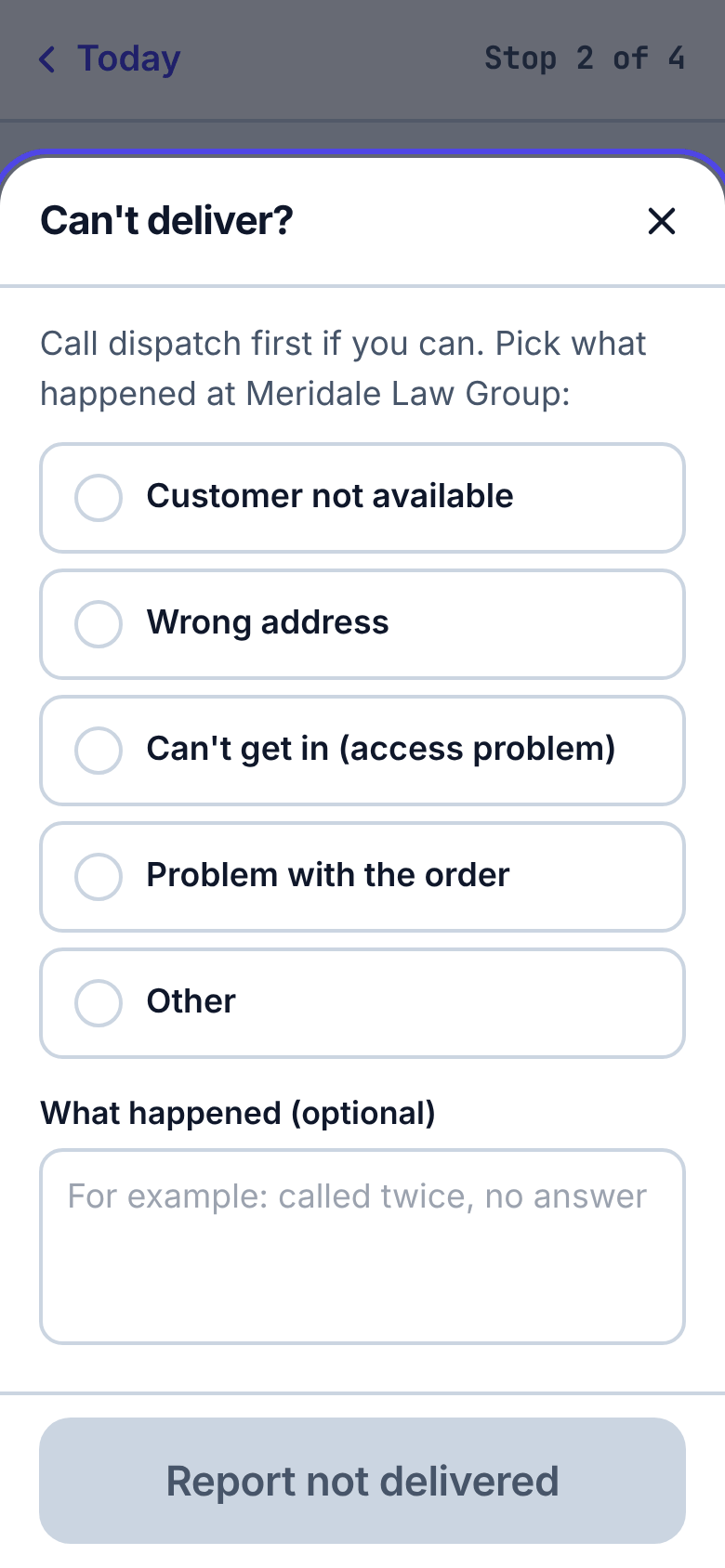
The stop is marked Not done with the reason on your list and on dispatch's board, and the app moves on to your next stop. Dispatch can reopen the stop if you go back later.
Proof dispatch can see
Dispatch sees who received the delivery and your note in the stop's panel. Photos and signatures are stored on the server with the delivery (for two years, unless your company set another period).