
Optimizing and unassigned stops
To let Routisserie build the trips, click Optimize. To place the stops it left over, read their reasons and use Suggest. How the planner thinks is explained in What Optimize does.
To optimize the day
- Check the roster for the day: Optimize plans only for drivers who work.
- Click Optimize in the top bar, or press O. On an empty day the trip list also offers Optimize N stops.
- Wait a few seconds. A message at the bottom right says what happened: how many stops are on how many trips, how many are left over and why, and how long it took. It has an Undo button.
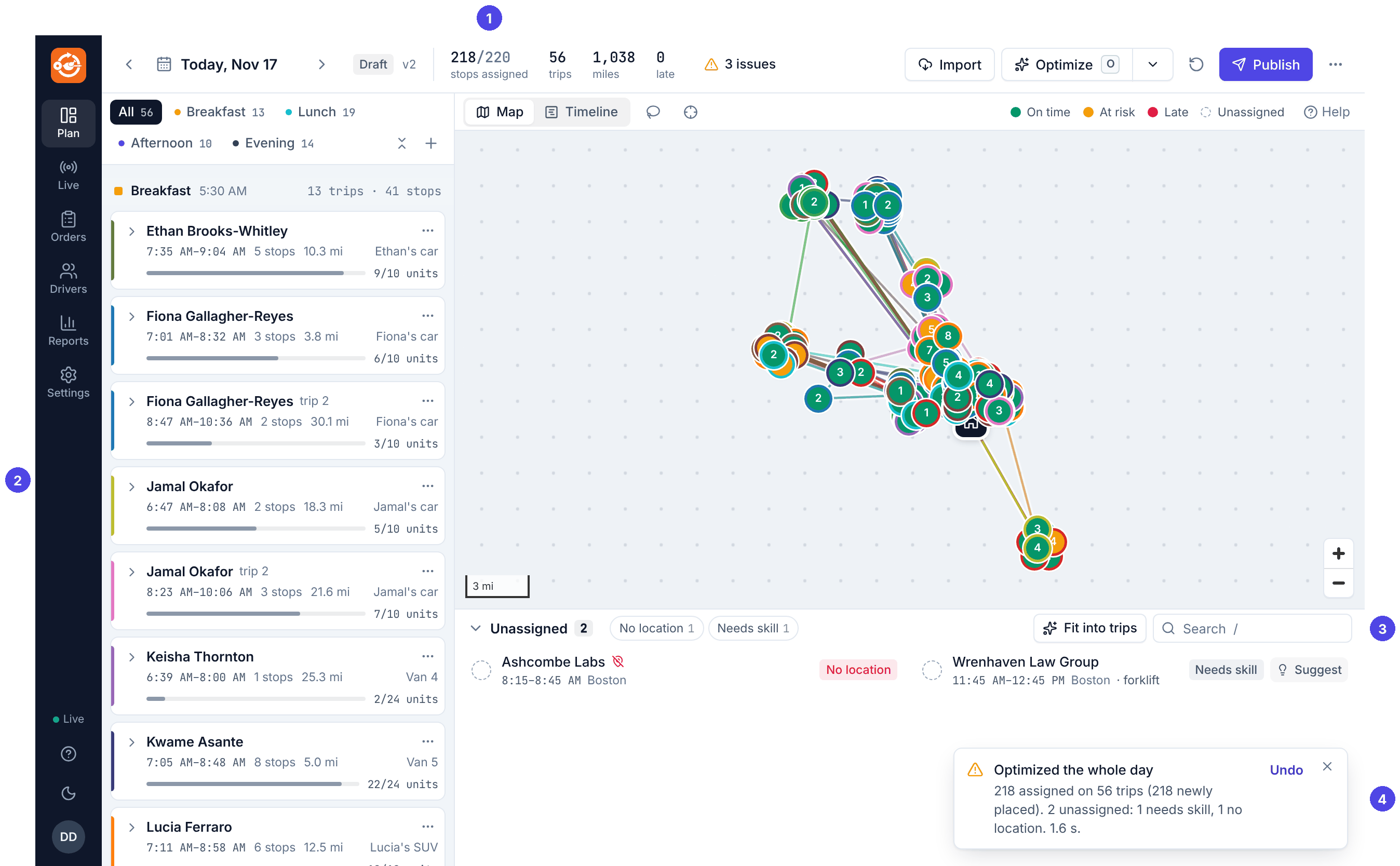
Optimize rebuilds every trip that is not locked and not started. Lock the trips you want to keep first (the lock on the trip card).
Other ways to optimize
Click the small arrow next to Optimize:
- All waves: the same as Optimize.
- This wave: click a wave at the top of the trip list first (for example Lunch); the menu then reads Lunch only and rebuilds just that wave.
- Unassigned only: keeps every trip as it is and fits the unassigned stops in where they cost least. The Unassigned list's Fit into trips button does the same.
To put one trip's stops in the best order without moving any stop to another trip, use Optimize this trip in the trip's ⋯ menu.
Unassigned stops
The Unassigned list at the bottom of the board holds every stop that is on no trip. Click its title to open or close it (U), and press / to search it.
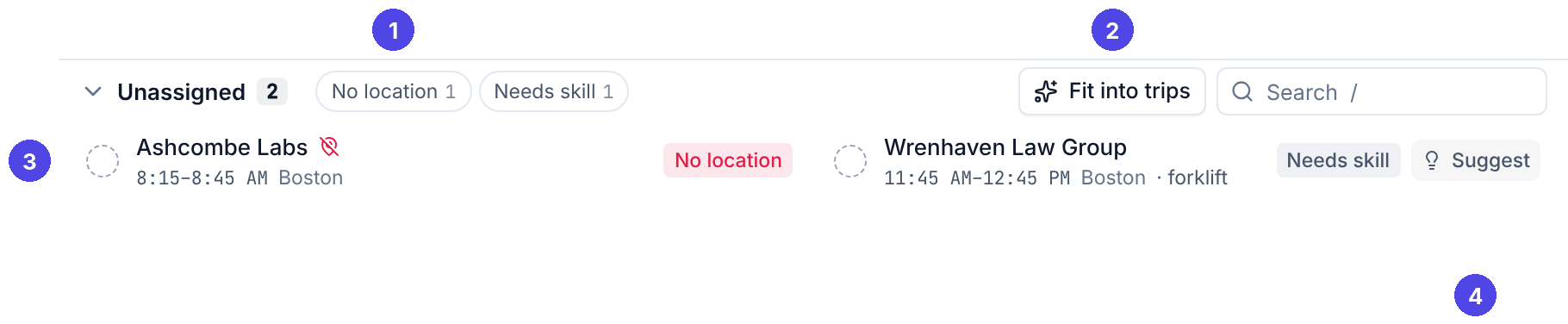
- The chips at the top count stops by reason. Click one to show only those.
- Fit into trips tries to insert every unassigned stop into the existing trips.
- Each stop shows its reason. Point at the chip for the details, for example Needs forklift; no available vehicle has it.
- Suggest shows where this one stop could go.
The reasons and what to do about each are listed in What Optimize does.
To place a stop with Suggest
- Click Suggest on the stop (in the Unassigned list or in its stop panel).
- Routisserie checks every trip and lists the cheapest place in each, best first: the driver, wave and position, when it would arrive, and how many minutes and miles it adds.
- Click a line to put the stop there. The message that confirms it has an Undo button.
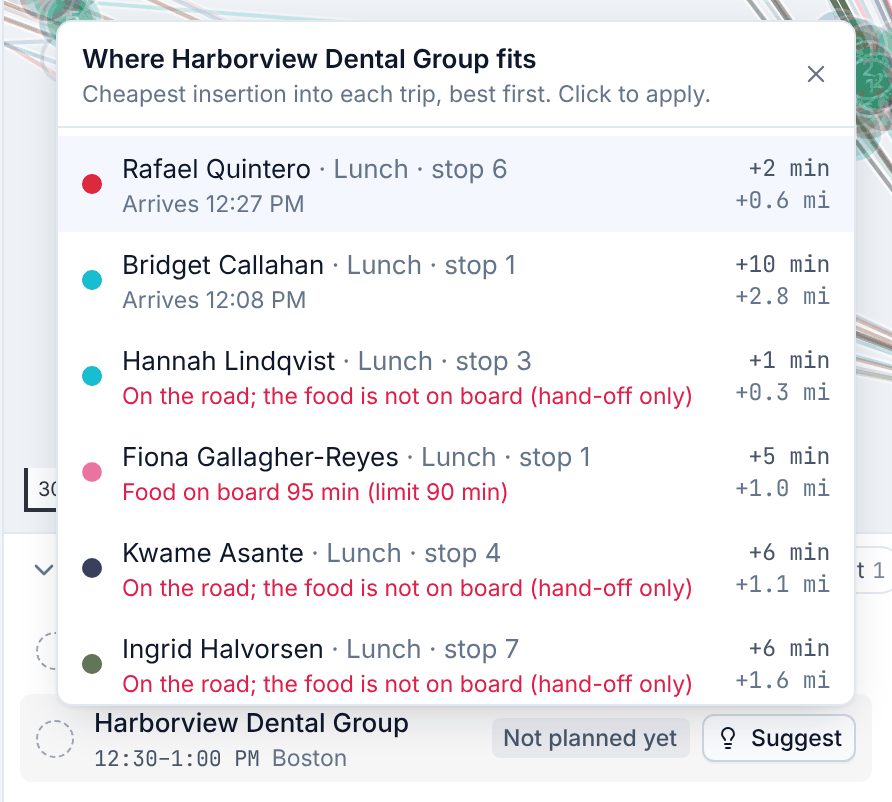
A line in red is not possible, with the reason (the driver lacks a skill, the food is not on board a trip that already left, a ride would be too long). If nothing fits, Suggest says so: add a trip for the stop's wave first (see Adding a trip).
To clear trips and start again
Open ⋯ at the right of the top bar and choose Clear all trips… (or Clear Lunch trips… when a wave is selected). Every stop that is not locked and not on a started trip goes back to Unassigned. You can undo it.