
The Live screen
Once trips are on the road, the Live screen shows where every driver is, when they will get to their next stops, and what needs your attention. Keep it open on a second screen during the day.
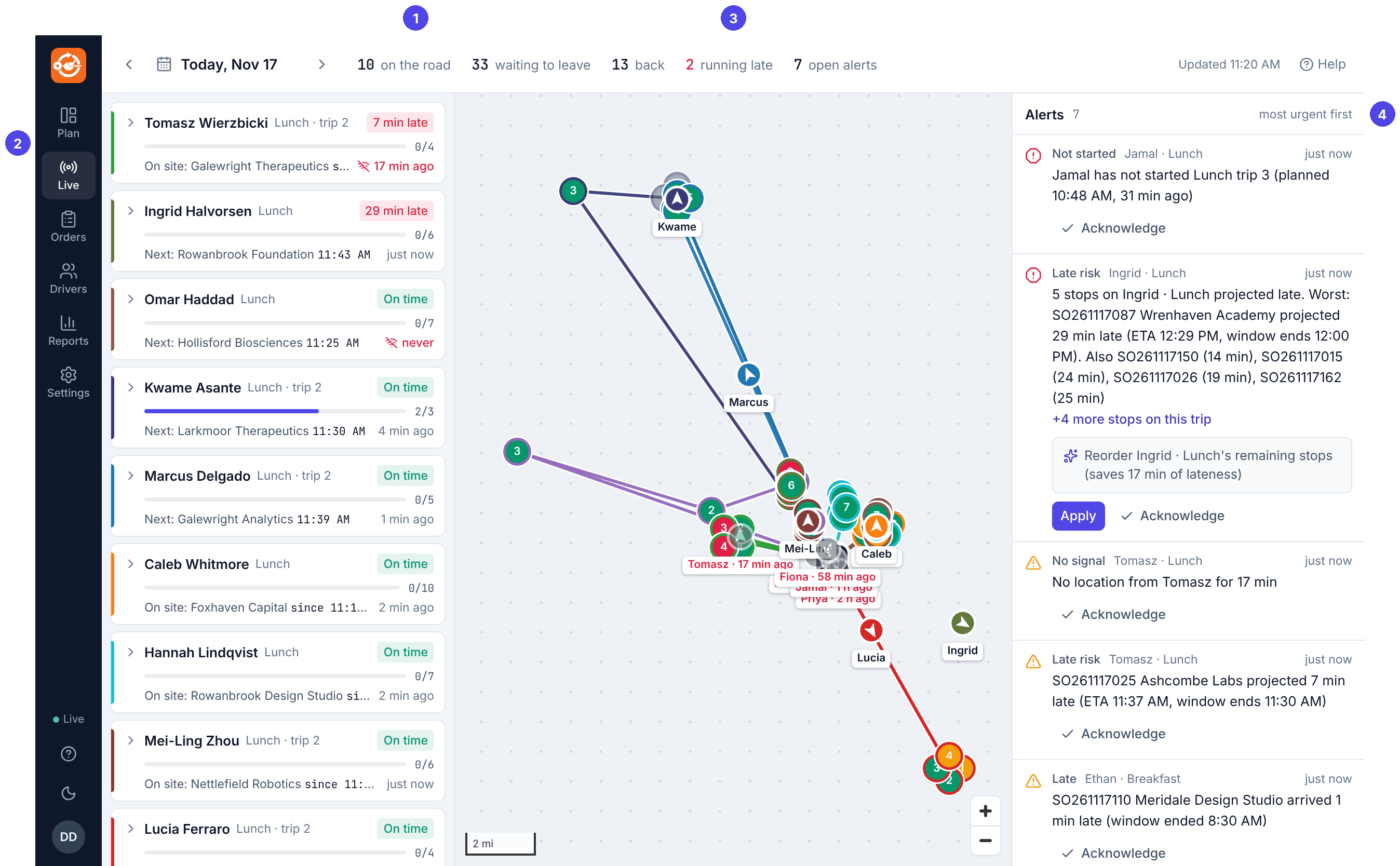
- Counts: trips on the road, waiting to leave, back, running late, and open alerts. Updated at the right is the time of the last refresh.
- Drivers, one card per trip that has been published, the ones needing attention first: late, then silent, then on time, then waiting to leave.
- The map: trips on the road, with each driver as an arrow labelled with their first name.
- Alerts, most urgent first.
Driver cards
A card shows the driver, the wave and trip, and a badge: On time, N min late, Leaves 11:43 AM, Not started (amber, when the departure has passed), or Back 10:24 AM. Below it: stops done, the next stop and its expected time (or On site since when), and how long ago the phone last reported. That time turns red with a crossed-out signal icon when the phone has been silent too long (10 minutes by default).
Click a card to open it:
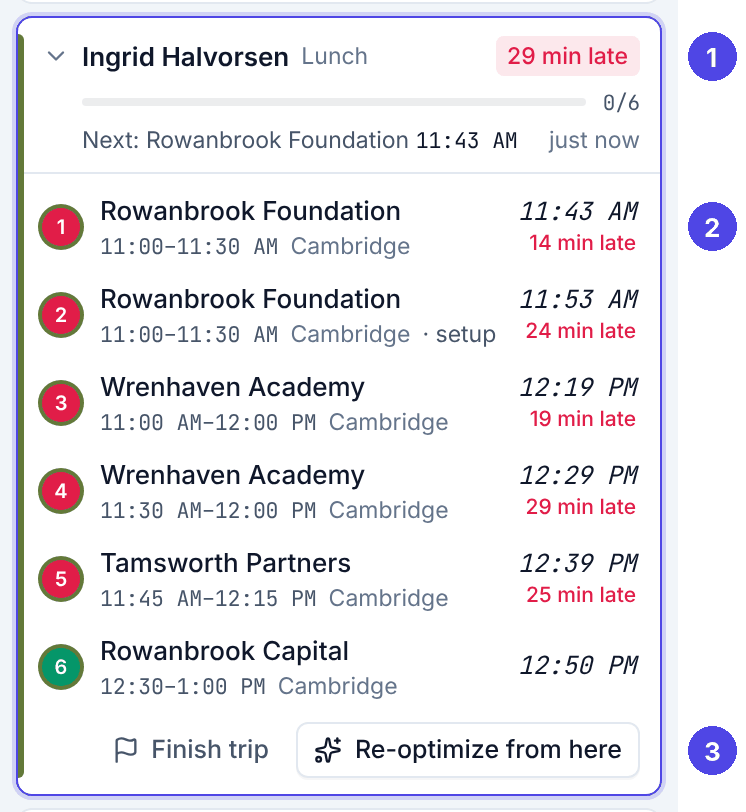
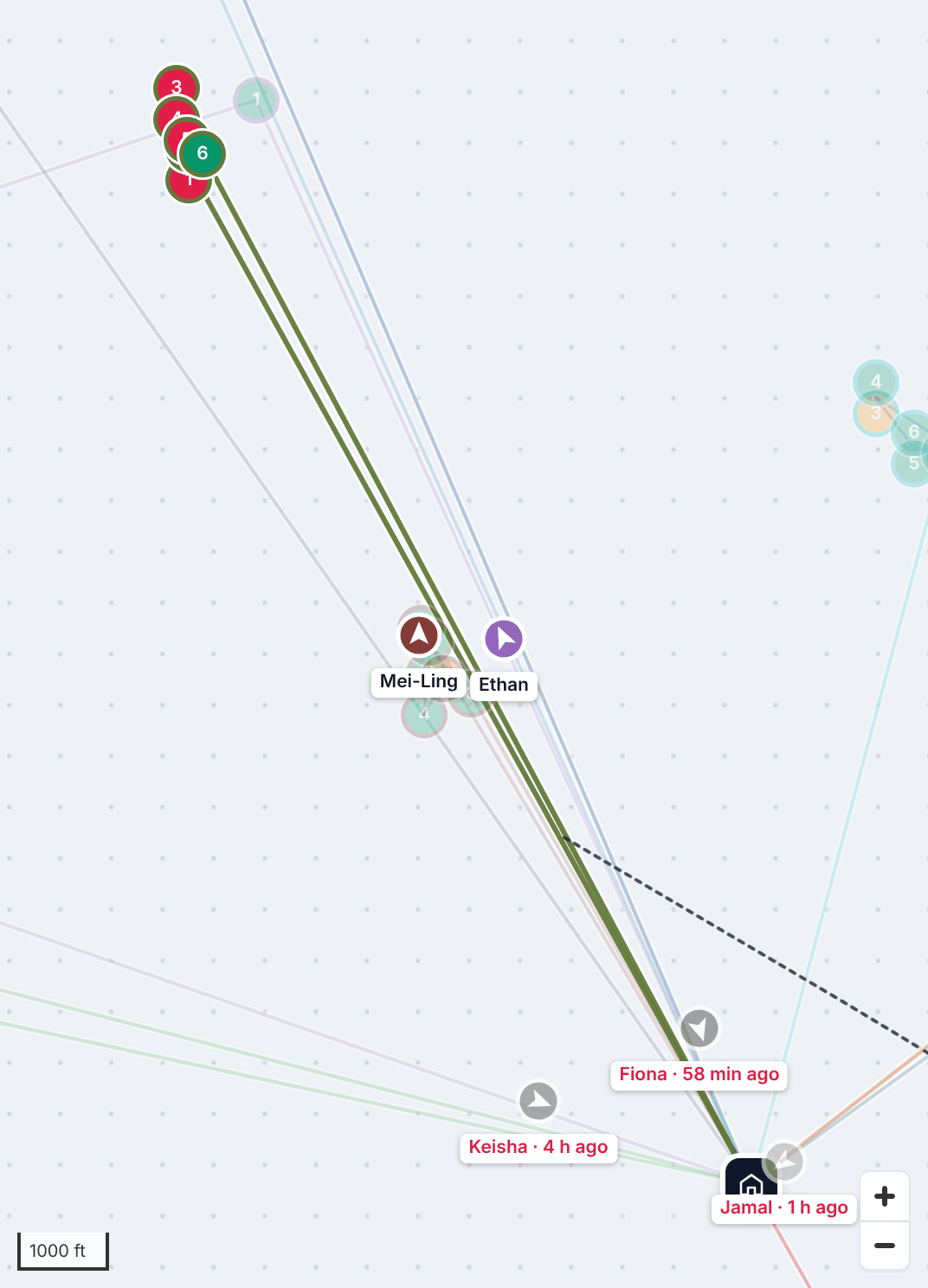
The map zooms to that trip and shows the driver's breadcrumb trail for the day. Times in italics are live estimates. Click a stop to open its panel.
Alerts
| Alert | Raised when |
|---|---|
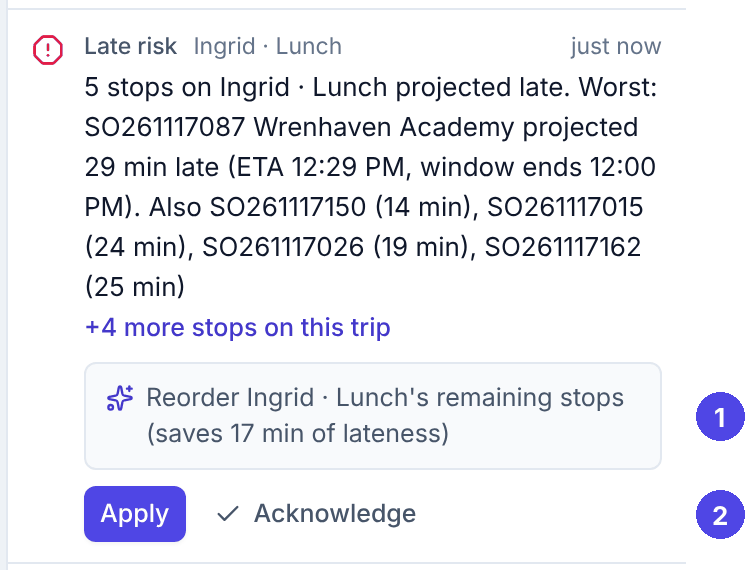
| Late risk | Stops on a trip are projected to arrive more than 5 minutes after their window ends. One alert per trip, listing every stop at risk, usually with a suggested fix. |
| Late | A stop was reached after its window ended. |
| Not started | A published trip has not been started 10 minutes after its planned departure (critical after 30). |
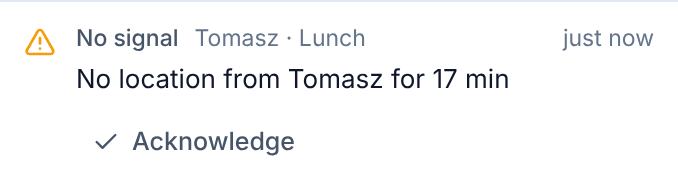
| No signal | A trip on the road has sent no position for 10 minutes. |
| Off route | The driver is well away from the planned route for several minutes. |
| Order changed, Order cancelled, New order | An import changed, cancelled or added an order for a published day. |
| Write-back failed | NetSuite refused or could not be reached for some orders, after several tries. |
Red icons are critical, amber warnings, grey information.
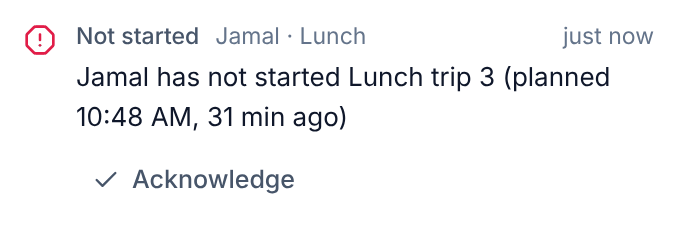
Each alert has:
- Acknowledge: you have seen it. It greys out and drops down the list; it disappears when the problem is gone (the driver started, the signal came back).
- Apply, when there is a suggestion.
The times in the alert settings (5, 10, 10 minutes) can be changed by an admin: Live rules.
To fix a trip that is running late
From a late van to a fix
No suggestion, or you know better? Open the driver's card and use Re-optimize from here, or move stops by hand. An administrator can let Routisserie apply reorders by itself (Resequence late trips automatically); it never changes the stop the driver is already heading to.
- Read the Late risk alert: which trip, which stops, how late.
- Read the suggestion in the grey box, for example Reorder Ingrid · Lunch's remaining stops (saves 17 min of lateness).
- Click Apply.
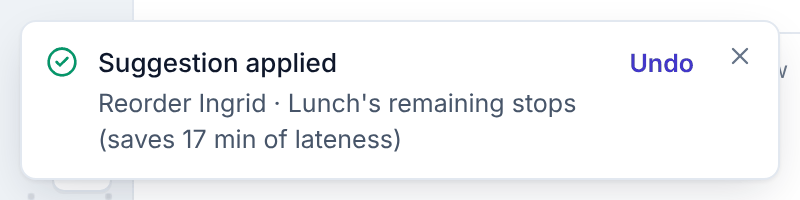
The driver's phone shows Route updated by dispatch with what changed. A message offers Undo. If the trip changed since the suggestion was made, Routisserie refuses it (Suggestion no longer applies): look at the trip and re-plan it as below.
A suggestion either reorders the trip's remaining stops, or moves stops that are not on board (equipment pickups) to another trip that passes by. It never moves food that is in a van; for that, drag the stop yourself (a hand-off, see Stops on a trip that has left).
To re-plan a driver's remaining stops
Open the driver's card and click Re-optimize from here. Routisserie puts the remaining stops in the best order starting from where the driver is now. Use it when there is no suggestion, or after the driver tells you about a closed road. It can be undone.
To act for a driver
Sometimes the driver calls in instead of tapping (a dead phone, a paper route sheet). You can record their progress for them:
Start a trip: open the driver's card and click Start trip for … (shown while the trip waits to leave).
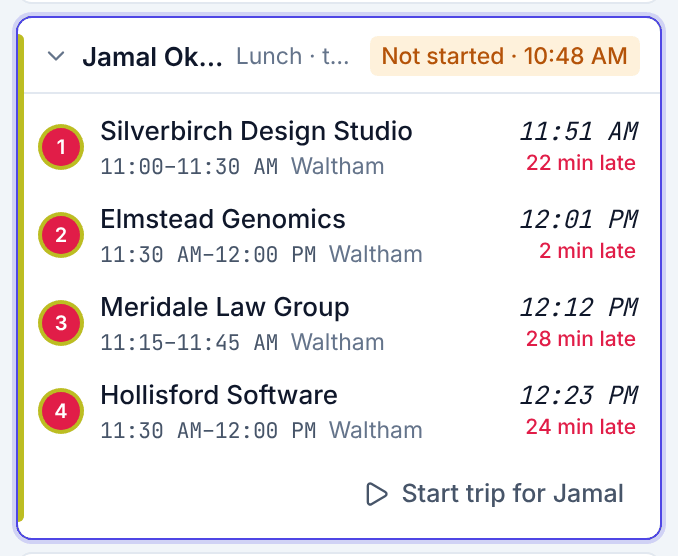
Jamal has not left; his stops are already projected late. Call him, then Start trip for Jamal if he is on his way. A stop: click it to open the stop panel. Under Delivery, On the driver’s behalf: Arrived, Delivered, Could not deliver (pick the reason; Other needs a note), or Reopen to undo a delivered, not delivered or arrived mark.
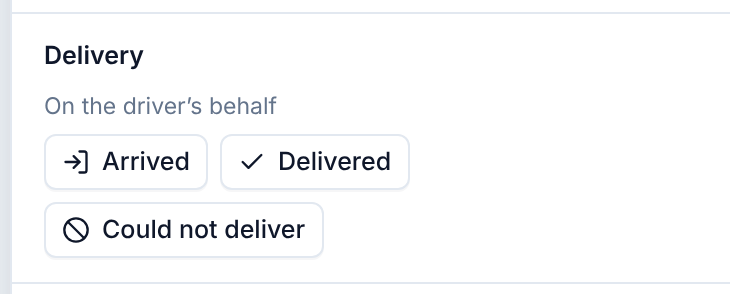
Recording a stop for the driver. The end of a trip: on the driver's card, Finish trip. Stops that were not delivered go back to Unassigned so you can plan them again; you can undo.
Rush orders
An order phoned in during the day:
- Enter it on the Orders screen with New order.
- Go to Plan. The stop is in the Unassigned list.
- Click Suggest. Routisserie checks every trip, including trips on the road, and explains which cannot take it (for example, On the road; the food is not on board (hand-off only)).
- Click the best line. The stop is added; if that trip is on the road, the driver sees it at once.
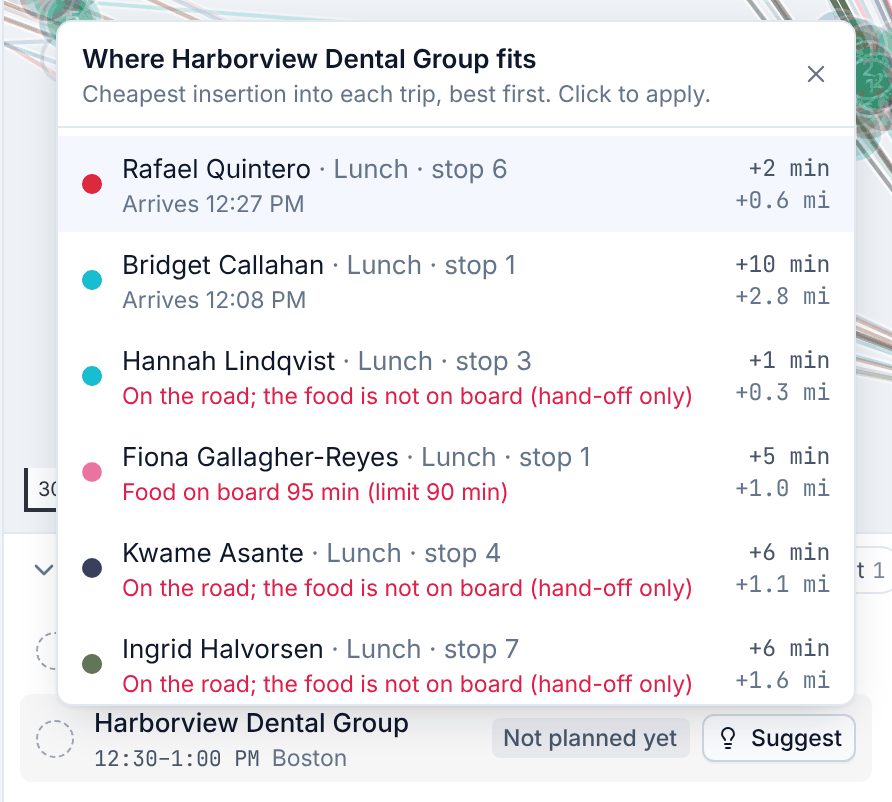

Usually the best place is a trip that has not left yet, because the food can still be loaded. If every trip of the wave has left, add a trip for a driver who is at the kitchen.
A phone stopped reporting
A No signal alert means the server has heard nothing from the driver for a while. Usually the phone is locked or the driver is in a maps app: browsers stop sending location then. The driver's last known position stays on the map, ETAs continue from the plan, and actions the driver takes without signal arrive later. Call the driver if it matters. For a driver who often goes quiet, set up always-on tracking.