
The plan board
The plan board is where you build the day. It opens when you sign in. Everything on it is the same plan seen in different ways: a list of trips, a map or a timeline, and the stops that are on no trip.
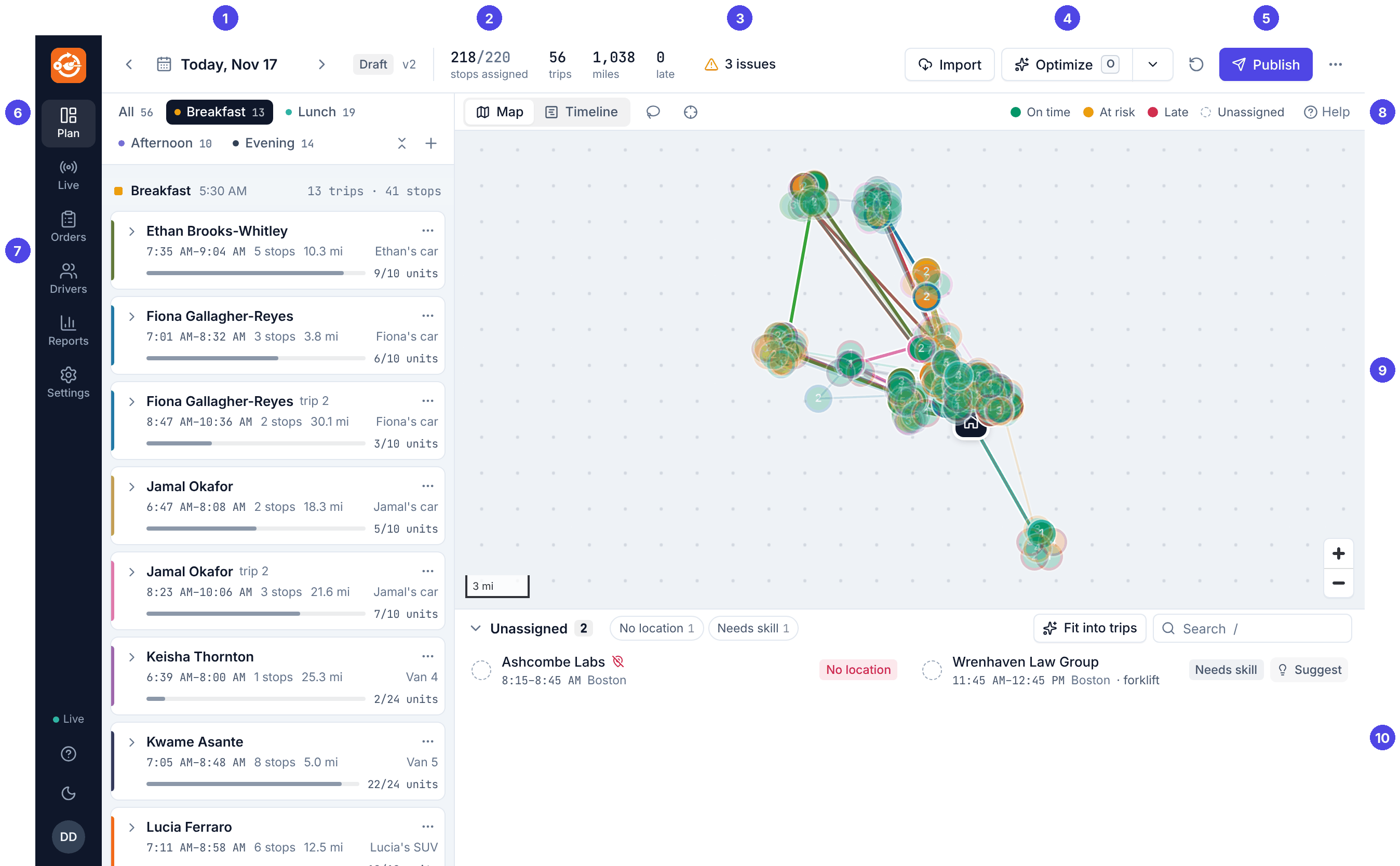
- The day. Arrows (or ← →) for the day before and after, click the date for a calendar, Today (T) to come back. The chip says Draft, Published (with the time) or Closed.
- Totals: stops assigned out of all stops, trips, miles, late stops and (on a wide screen) the estimated cost.
- Issues: problems found on the plan. See Issues.
- Optimize, with the other choices under its arrow. See Optimizing.
- Publish. See Publishing. The undo arrow is just left of it, and ⋯ holds printing, export, clearing, unpublish and close day.
- Waves. All or one wave; the number is its trips.
- A trip card. See below.
- Map or Timeline, the lasso and Fit all stops, and the colour legend.
- The map (or the timeline).
- Unassigned stops. See Unassigned stops.
Trip cards
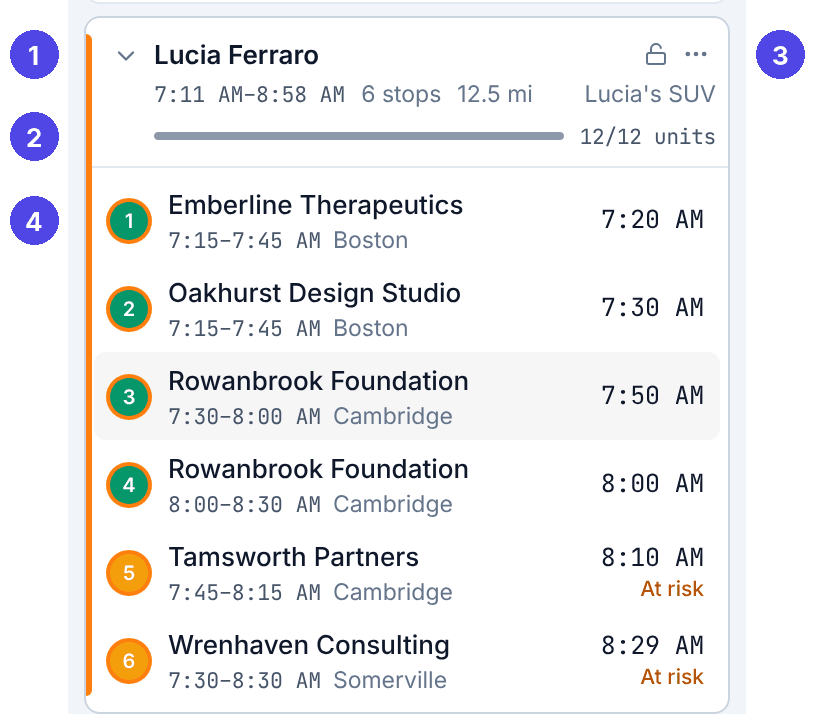
- The driver, with trip 2 or trip 3 if it is not their first trip of the day. Under it: when the trip leaves the kitchen and comes back, how many stops, the miles, and the vehicle on the right.
- The load against the vehicle's capacity. The bar turns red when the trip is over capacity. Once the trip is on the road the bar shows stops done instead.
- The lock. A locked trip is left alone by Optimize. The lock shows when you point at the card.
- The stops in driving order. The circle has the stop's number, its colour says if it is on time, and its ring is the trip's colour. Next to it: customer, window, town, skills, and the planned arrival on the right.
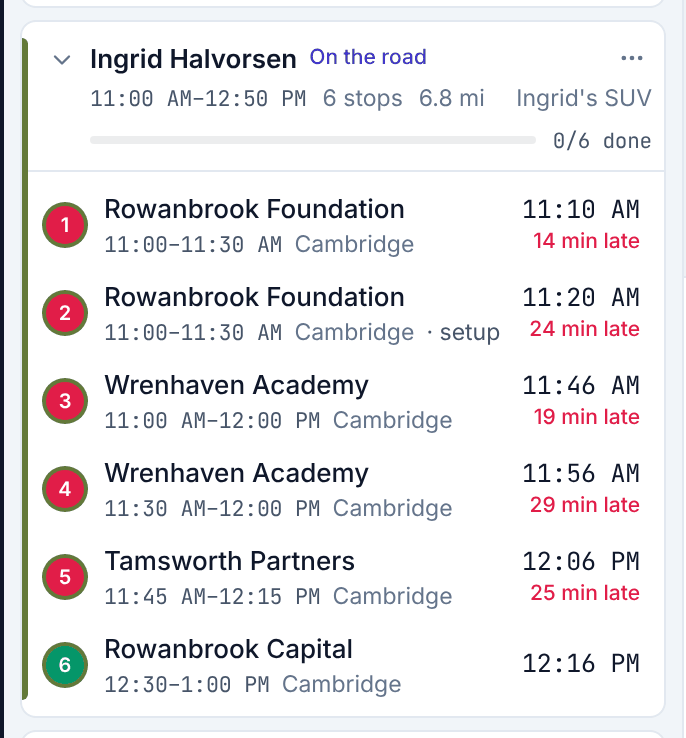
Once a trip is on the road the card says On the road, the bar counts stops done, and each stop shows its live arrival time and how late it is:
Click the arrow at the left of the card to open or close it. Opening a trip also zooms the map to it. The ⋯ menu on the card has more:
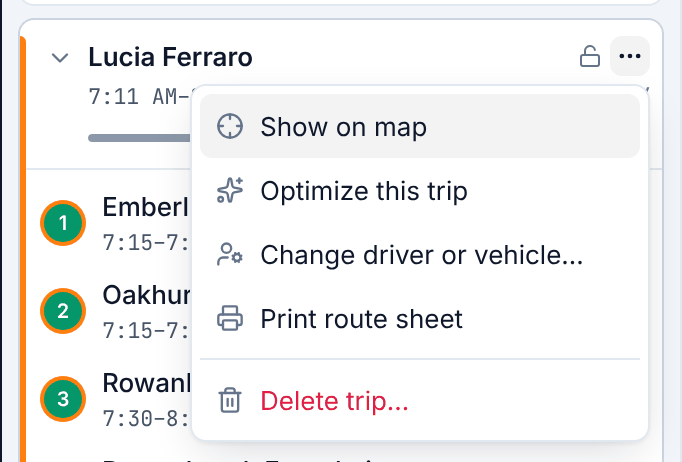
- Show on map zooms to the trip.
- Optimize this trip puts its stops in the best order without moving them to other trips. On a trip that is on the road it reads Re-optimize from driver and starts from where the driver is now.
- Change driver or vehicle… gives the trip to someone else or another vehicle.
- Print route sheet: see Route sheets.
- Delete trip… sends its stops back to Unassigned. Only for trips that have not started.
The map
Each trip is a coloured line from the kitchen (the house marker) through its stops and back. Stops are numbered circles: the fill says whether the stop is on time, the ring is the trip's colour. Unassigned stops are hollow dashed circles. See Colors and status.
- Click a stop to open its details. Point at a stop or a trip to highlight it in the list.
- Click a wave at the top of the trip list, or open a trip card, to show just those trips.
- Fit all stops (the target icon) zooms out to the whole day.
- Hold Shift and drag, or turn on the lasso, to select several stops at once.
About the map in these pictures
The screenshots in this guide were taken on a test computer without the street map, so the routes are drawn on a plain dotted background as straight lines. On your Routisserie server you see streets, water and place names under the routes, and trips follow the roads.
The timeline
Click Timeline (or press V) to see the day as one row per driver and time from left to right.
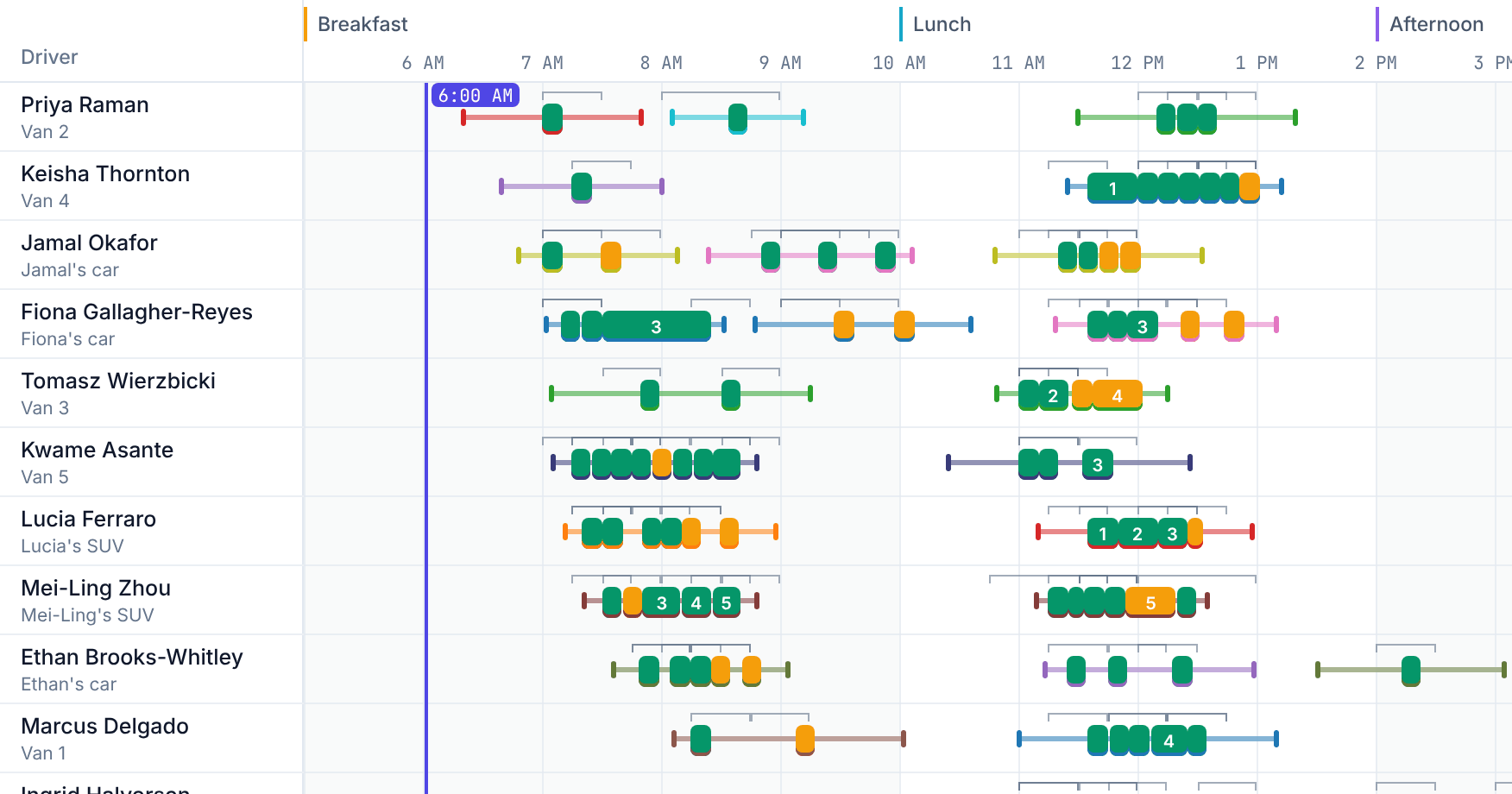
- Each stop is a block from arrival to departure, in the same colours as the map. The thin bracket above it is the delivery window.
- Lines between blocks are driving. The bands in the background are the waves.
- On today's plan a vertical line shows the time now.
- Point at a block to see the customer, window and arrival. Drag a block onto another driver's row to give the stop to that driver's trip in the same wave.
The stop panel
Click any stop (in a trip, in the Unassigned list, on the map or the timeline) to open its panel on the right.
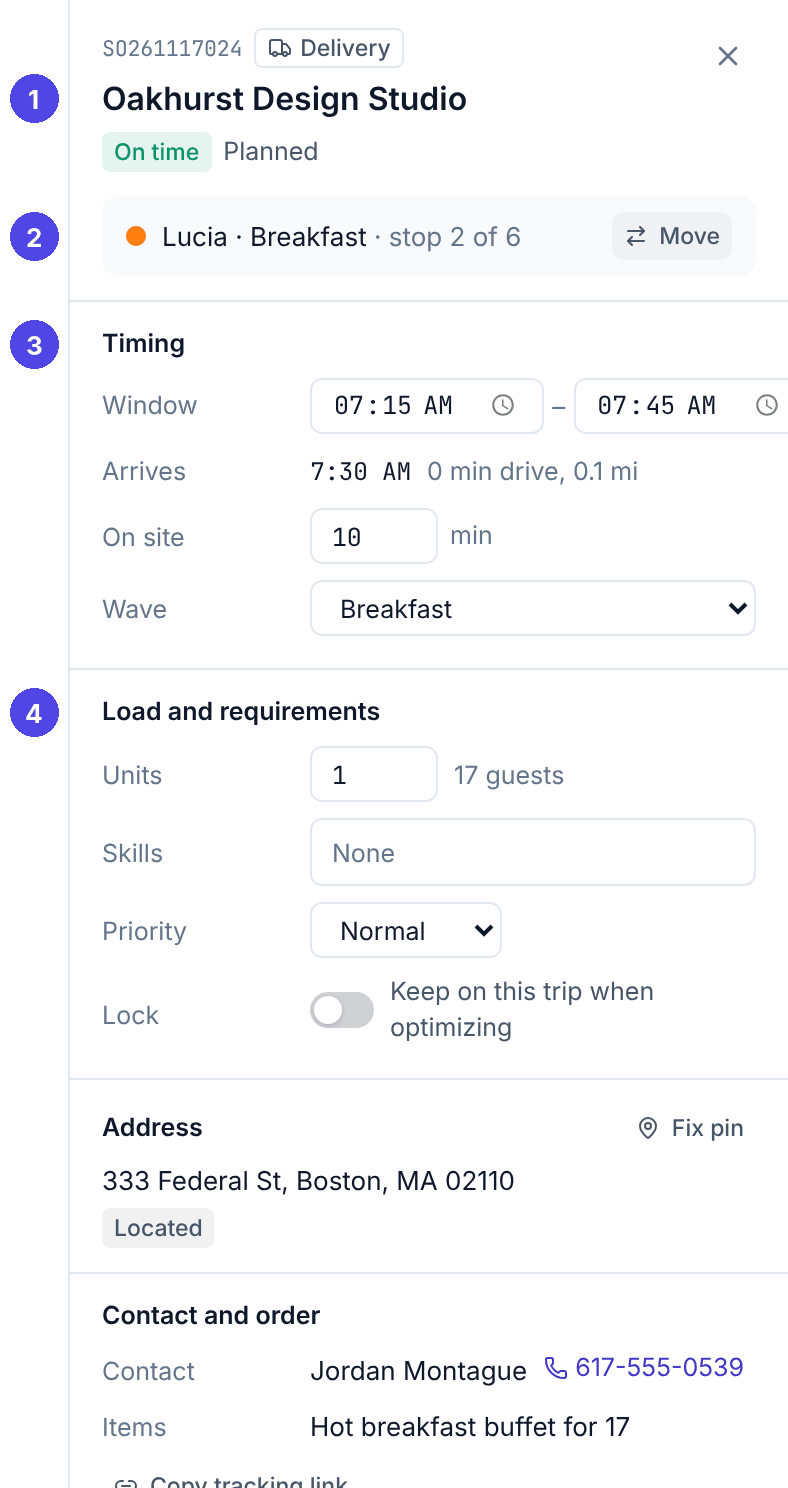
- The order number, delivery or pickup, the customer, the on-time state and the status in words.
- The trip it is on and its place in it, with Move. For an unassigned stop: the reason and Suggest.
- Timing: the window (you can change it here), the planned arrival with the drive from the previous stop, the actual times once the driver has been, the time on site, and the wave (Automatic (by window) unless you choose one).
- Load and requirements: units, guests, skills, priority, and the Lock switch that keeps this stop on this trip when you optimize again.
Further down: the address and its pin (Fix pin), the contact (click the phone number to call from a computer that can), what to bring, notes, Copy tracking link, what the driver recorded (who received it, notes, why it was not delivered) and the order's history. Changes in the panel are kept only after Save changes. Close the panel with Esc or the ×.
Issues
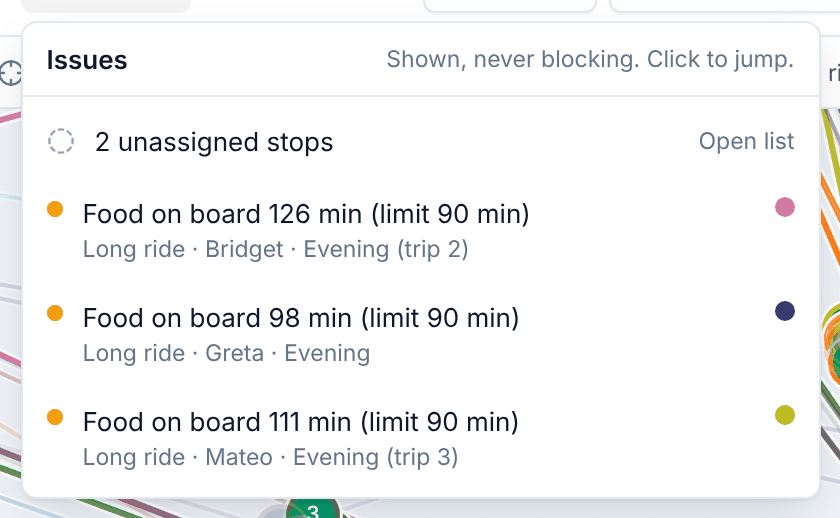
The list shows unassigned stops first, then every issue on every trip, the most serious first. Click a line to jump to the stop or trip. Issues are shown, never enforced: you can publish with issues. What each one means is in Colors and status.