
Users, roles and driver PINs
The owner or office manager, signed in as an admin, decides who can sign in and what they can change. Open Settings in the left-hand bar.
The Settings screen has five sections on its left: Waves, Planning defaults, Live rules, Integrations, and (for admins only) Users. Dispatchers can open Settings and change waves; only admins can change planning defaults, live rules and users.
Roles
| Role | Can |
|---|---|
| Admin | Everything, including planning defaults, live rules and users. |
| Dispatcher | Everything on Plan, Live, Orders, Drivers and Reports; change waves. Not settings or users. |
| Viewer (read only) | See everything, change nothing. For the kitchen manager or the owner's phone. |
| Driver | Only the driver app, with phone number and PIN. Drivers are not added here: see Driver PINs. |
To add a person
- Settings → Users, click Add user.
- Enter the Name, Email (what they sign in with), Role, and a Password of at least 8 characters. Tell them the password in person or by phone.
- Click Add user.
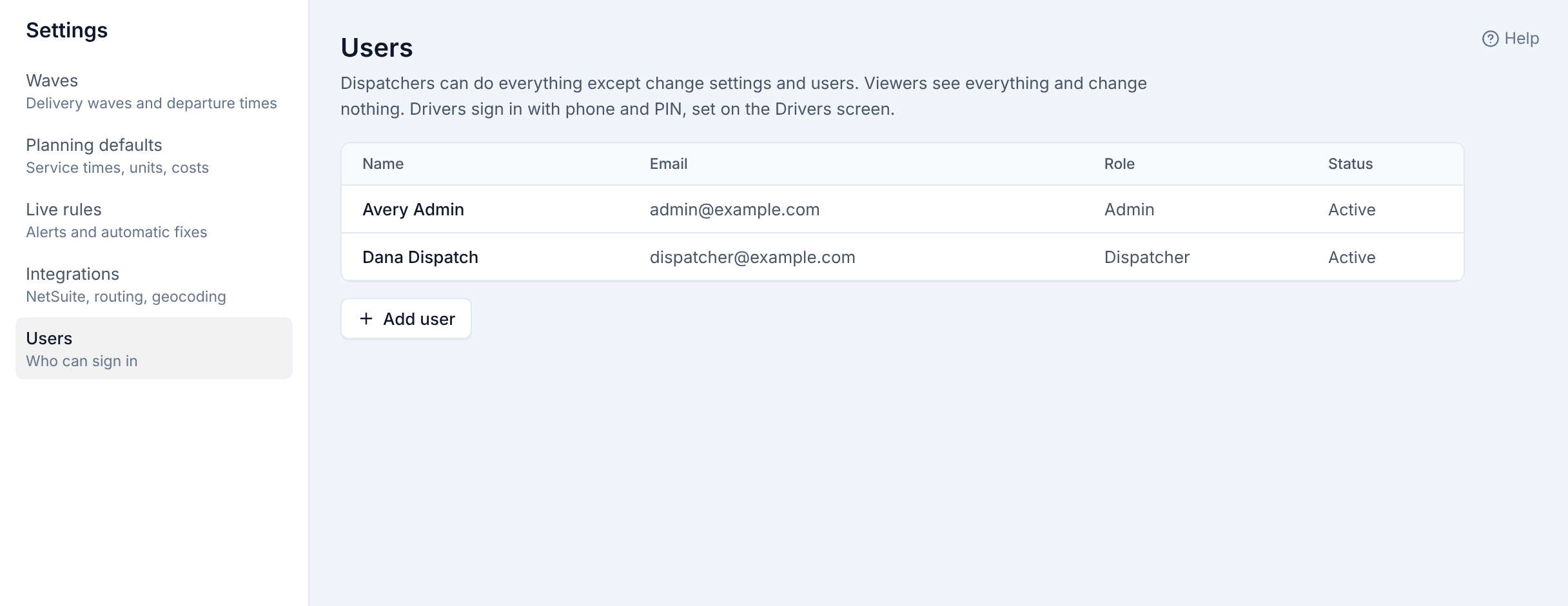
To change someone (role, name, a new password), click their row. Leave New password blank to keep the current one. To stop someone signing in, turn off Can sign in. Changing a password or role, or turning off sign-in, ends that person's open sessions at once.
The first admin account is created by the server administrator when Routisserie is installed.
Driver PINs
Drivers sign in to the driver app with their mobile number and a PIN of 6 to 8 digits. Dispatchers and admins set PINs:
- Drivers → Drivers, click the driver.
- Check the Phone is the driver's mobile number.
- Under Driver app PIN, type the new PIN and click Set PIN.
- Tell the driver the PIN in person or by phone.
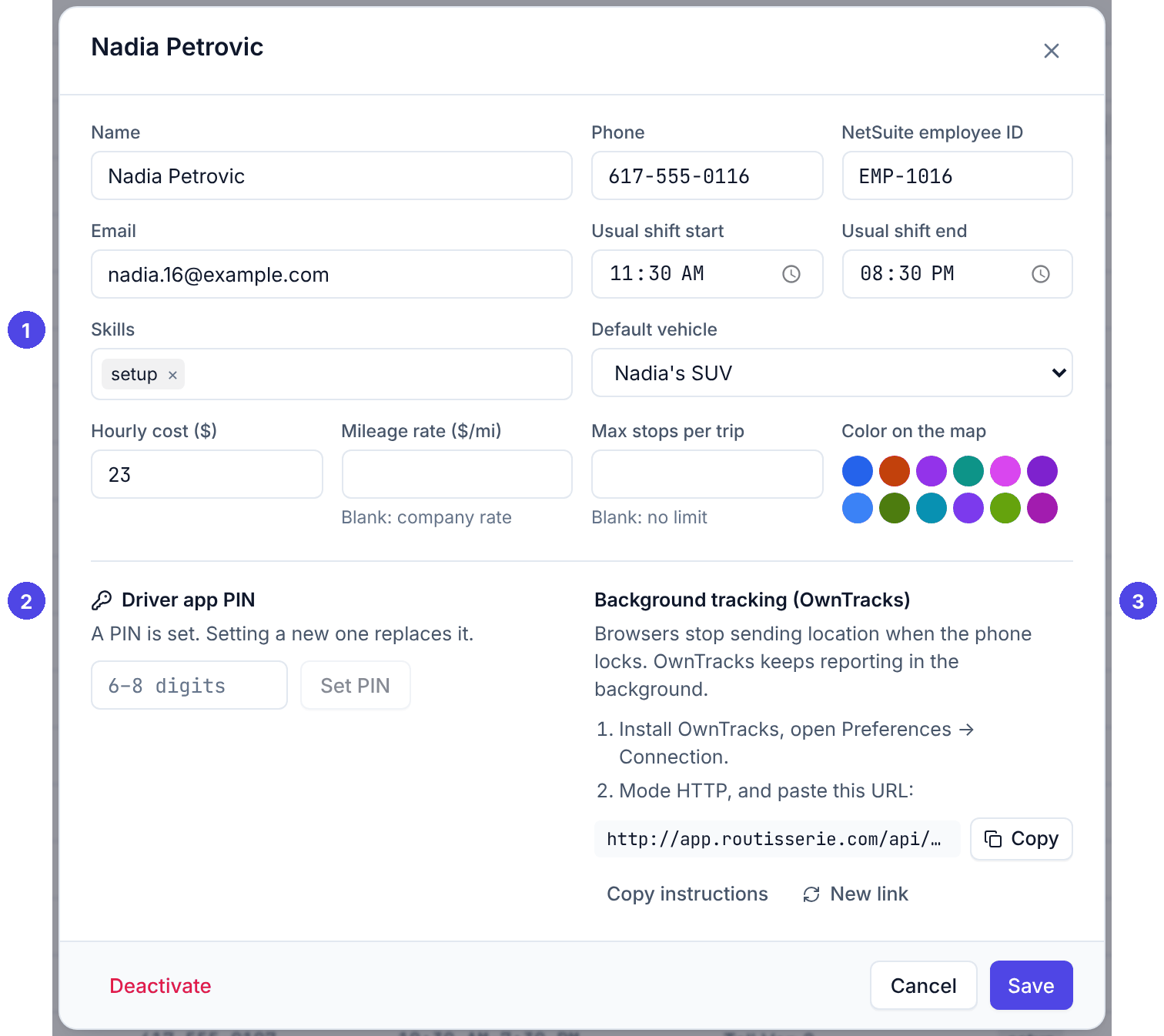
The list shows No PIN for drivers who cannot sign in yet. Setting a new PIN replaces the old one and signs the driver out of their phone; anything waiting on the phone is sent after they sign in again. Choose PINs that are not easy to guess (not 123456, not the end of their phone number). After repeated wrong PINs, sign-in is paused for a few minutes.
When someone leaves
- Office staff: open them in Users and turn off Can sign in.
- Drivers: open them in Drivers and click Deactivate. They stay in past reports and get no new trips. Also issue a New link for background tracking if they used it (see Always-on tracking).